





Key takeaways
- AI now drafts your sales documents in seconds, but the review work is what eats your team's time.
- The fix is a 4-step structural layer that sits underneath the AI. Clean CRM data, a template built around that data, conditional logic for deal variation, and an eSignature loop that closes back to the CRM.
- A 10-person team processing 200 proposals a month loses about 83 hours, or $60,000 a year, to manual review and admin work that should not require human intervention at all. This cost can be recovered.
- Most first attempts fail within the first 90 days due to 5 specific mistakes. Skipping the audit, scattered template versions, stale catalogue data, missing conditional logic, and trying to automate too many document types at once.
- Start with one document type and run the workflow for 14 days. That is enough time to see whether it works for your team before you move on to the next document.
Remember how you used to do sales document automation pre-COVID? You'd wrap up a discovery call, open Word, copy data from Salesforce, send the file as an attachment, and wait around a week for a scanned signature to come back.
Then came the 2020-2023 stretch. COVID forced every manual process online overnight. Tools like Zapier and Make connected your CRM to your documents. E signature tools let you sign digitally. Mail merge filled in the basic details. Suddenly, your systems talked to each other, and instead of waiting for a week, proposals went out the very same day. But even with all the automation, the drafting was still on you. A human still wrote every proposal from scratch.
Now in 2026, AI does all the heavy lifting for you. You ask Claude or ChatGPT, paste in the deal context, and a full proposal lands in your lap in 30 seconds. Speed? Solved.
But here's the thing: speed is not even the problem now. Right now, our issue lies in accuracy and credibility.
That AI draft still needs someone to check the pricing, confirm whether the EU clause went to the EU client, verify if the product name matches this quarter's catalogue, and make sure the version going out is the one Legal actually approved.
With more than 200 proposals a month, this review work eats up most of the time the writing used to take. You've basically traded one problem for another.
Sales teams are actively searching for the structural layer that makes AI-generated documents reliable, consistent, and signature-ready.
That's exactly what we're covering. In this article, we walk you through the 4-step workflow, the conditional logic that handles every deal variation within a single template, the eSignature loop that closes the cycle, and the 5 mistakes that kill most first attempts.
By the end, you'll know exactly how to build this layer for your team.
What sales process automation actually covers?
Sales process automation uses software and AI to run the repetitive parts of your sales cycle on their own. That covers lead routing, follow-ups, proposals, contracts, and CRM updates.
Most of the work in a modern sales cycle falls into 4 categories, and all of them can be automated:
- Lead management: Routing, scoring, assignment, and qualification
- Communication sequences: Follow-up emails, meeting reminders, and nurture cadences
- Pipeline management: Stage updates, task creation, forecast rollups, and notifications
- Document generation: Proposals, quotes, contracts, agreements, and the eSignature workflow that closes them
Most teams have automated the first three. The fourth one, document generation, is where things still fall apart.
And the cost of that gap is higher than it looks. According to Salesforce's report, sales reps spend just 30% of their workweek actually selling. The other 70% goes to admin, data entry, and CRM updates. Document work is one of the biggest chunks of that 70%, and it's the part you're probably still doing manually.
But why does it stay manual? There are three possible reasons:
- Your tools sync, but only at the surface:
Though your CRM, document tool, and eSignature platform are connected, the sync only carries standard fields. Custom pricing, deal-specific clauses, and live updates do not pass through. So when AI drafts a proposal, it misses exactly the details that matter most.
- AI applies your rules only when you remind it each time:
Every new proposal starts from zero. You re-prompt the clause for that region, the template for that deal size, and the approval flow for that customer. The rules live in your head. AI follows them only when you spell them out repeatedly.
- A document is a chain, and AI only handles one link:
A proposal needs data from your CRM, pricing logic, the right legal clauses, eSignature, a stored copy, and a CRM update at the end. AI writes the document. The other steps still require a human because the tools that handle each step (CPQ, CLM, eSignature, storage) reside in separate systems. Someone has to move the output from one tool to the next, click the right buttons, and update the deal once it is signed.
4 step sales process automation workflow
Notice the pattern across the three reasons above (shallow sync, AI not applying rules, broken chain)? They all point to the same thing: there is no connection among the tools.
That is what the structural layer fixes.
Your CRM passes data to the template; the template applies conditional logic; the document is routed through eSignature; and the signed copy comes back to your CRM. When your steps are connected, every document is going out reliable, deal-specific, and signature-ready.
Here is how to build each step.
Step 1: Start with clean CRM data and field mapping
Before you build anything, audit three numbers for each document your team sends:
- Time per document: how long does one take to create today?
- Volume per month: how many do you send?
- Error rate: how often do mistakes slip through?
Multiply time by volume. That gives you the total number of hours your team spends on documents each month. That is the baseline you will measure against later.
Next, list every field your template needs from the CRM, such as client name, company, deal value, line items, pricing, payment terms, and validity date.
Challenges usually show up in three places:
- Custom fields: The integration may not pull custom fields from your CRM. Salesforce custom objects, HubSpot deal properties, and Pipedrive custom fields are usually the first places this fails.
- Inconsistent entries: Your team formats the same data differently. One rep enters $5,000. Another enters "5000 USD." A third leaves it blank. The template carries the inconsistency forward.
- Computed fields: Anything the CRM calculates (discounts, totals, prorated values) often needs a Zapier or Make step to transform before the template can read it.
Pull a sample of your CRM data (JSON or CSV works). Walk through every field the template references. Standardize what you can. Add middleware where you cannot.
Step 2: Build the template around the shape of your data
Once your data is clean and your fields are mapped, your next step is to build the template that will use that data.
You have two ways to build it.
- Start from scratch in a no-code builder. This works if you do not already have a strong document baseline.
- Upload an existing Word, Excel, or PowerPoint file and add dynamic tokens directly to it. This works if your current template already has the formatting, brand work, and clauses baked in.
Most teams upload, because the existing template already has the formatting, brand work, and clauses baked in. Tools like Docupilot let you upload a .docx file as-is and drop in tokens like {{client_name}} or {{line_items}} exactly where the data should appear.
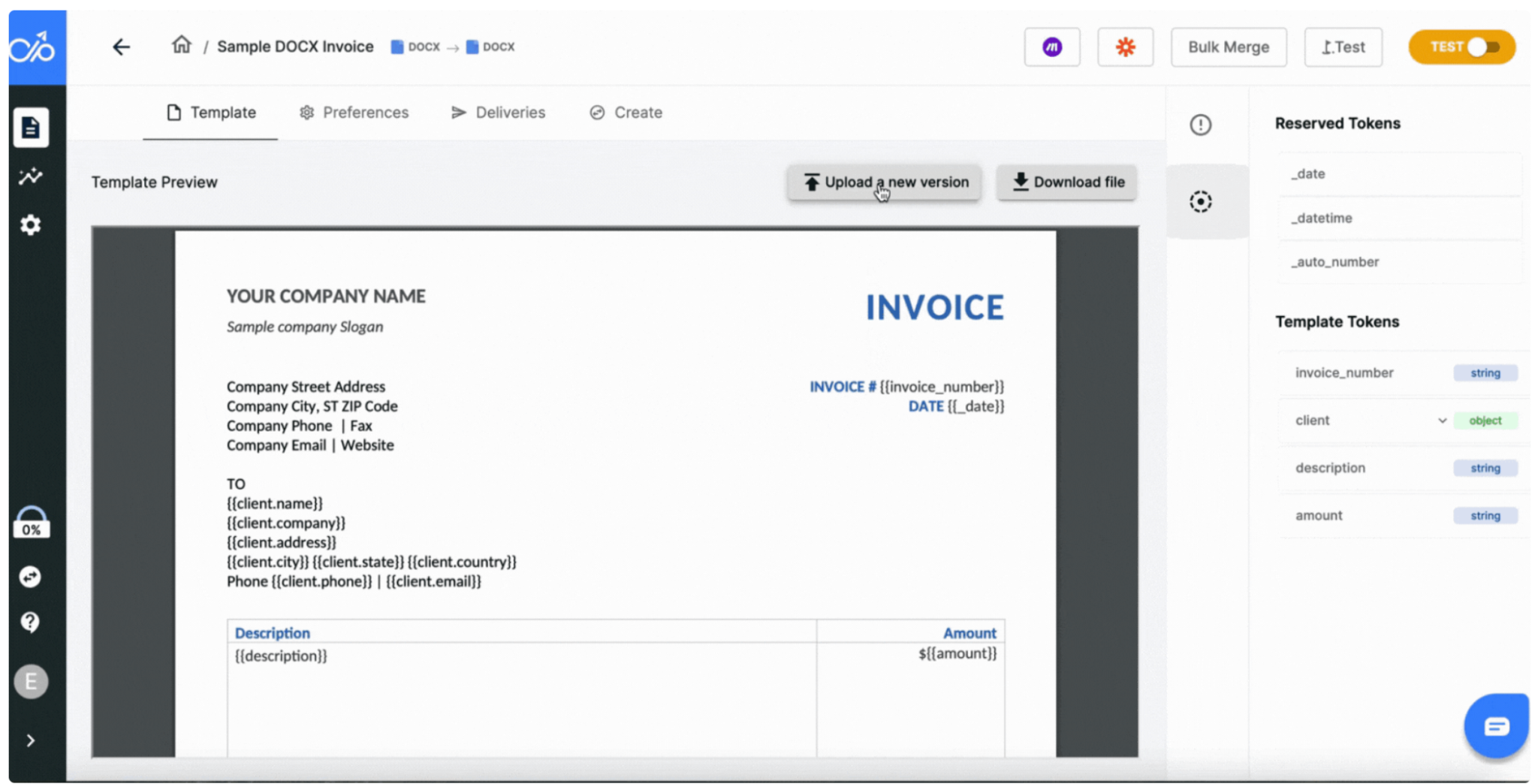
Whichever path you take, you always design the template around the shape of the data. If your CRM returns line items as an array, the template needs a loop to iterate over it. If pricing comes back as a nested object with item, quantity, and unit price, the template needs the same nested structure to receive it.
A static template will break when deals vary. A dynamic template built around your data will not.
Step 3: Add conditional logic so one template handles every deal type
Once you have a template built around your data, your next step is to teach it to handle the variation in your deals. That way, you can handle different pricing for different tiers, different clauses for different regions, different sections for different contract types, without building a new template for each combination.
That is called conditional logic. Rules like if/else present within the template determine what appears in the final document based on the deal data.
To better understand this, consider these examples.
Example 1: If the deal value is greater than $50,000, include the executive summary section and the enterprise SLA clause. If the value is less, exclude both.
Example 2: If the client is in the EU, include GDPR data processing terms. If in the US, include standard US terms.
This way, one template now handles enterprise deals, SMB deals, multi-product bundles, regional variations, and contract types. Now, only the document changes based on the deal data. The template is just one.
To see what other rules are in place, you can check our Docupilot help guide here.
Step 4: Close the loop with automated delivery and esignature
Your template now handles every deal variation. The final step is to decide what the document does once it is created. Without this step, the document sits in the system, waiting for a rep to email it, upload it for signing, or manually save it to the right folder.
To avoid that, there are four things you should set up at the beginning:
- Email the recipient: Send the document straight to the recipient as soon as it is generated.
- Save to cloud storage: File the document in Google Drive, Dropbox, or Amazon S3 using dynamic file paths, so the archive organizes itself based on the deal data.
For example, a contract for Acme Corp on the Standard plan is saved as /Contracts/Acme Corp/Standard/2026-06-Contract.pdf. The data decides where it goes.
- Send for esignature: Route the document through DocuSign, Adobe Sign, or a built-in module like Docupilot's. Use sequential signing (VP signs first, then the document forwards to the client) or parallel signing (all parties receive it at once), depending on the contract.
- Sync back to CRM: Send the signed copy back to the deal record, and update the deal stage to "Contract Signed" the moment the eSignature is complete.
For contracts specifically, the full sequence runs on its own. The document is generated, routed to the signer, sends automatic reminders if the signer stalls, archives the signed copy to the correct folder, and updates the CRM deal stage. The rep's only action was moving the deal stage that triggered the workflow.
5 sales process automation mistakes that ruin AI-generated documents
Even with the four steps in place, the workflow can still fall apart in the first 90 days. You can prevent that, but only if you know what to watch for. Below are the five mistakes that cause it, and the fix for each.
1. Skipping the audit before you build.
Although the workflow runs, and the documents go out, you may not be able to prove how the automation actually saved time or reduced errors. Without that proof, the investment becomes invisible, and so does the case for expanding the workflow to the next document type.
The fix:
Before you build anything, capture three numbers:
- How long does each document take today
- How many do you send per month
- How often errors slip through.
Multiply time by volume to get your monthly document labor baseline. Run the same calculation 90 days after launch, and the difference between the two is the impact you can show your leadership.
2. Letting every rep maintain their own template version.
Without a single source of truth for the template, your team ends up with 15 versions of the same proposal floating around. Each rep keeps their own copy with slightly different formatting, outdated pricing, or a missing legal clause. The automation runs perfectly on whichever template the rep happened to use, which is rarely the one Legal actually approved.
The fix:
Store the master template in a shared library with role-based access and version history, so every generated document pulls from the current approved version rather than a copy someone saved to their desktop three months ago. Any change to the template goes through a defined review process, and the change rolls out to everyone at once.
3. Forgetting to update templates when the catalog or pricing changes.
Your product team updates the catalog, and your pricing team updates the rate card, but your template still references last quarter's product names and prices. The automation generates a polished, accurate-looking document that is wrong, and the client may not catch it until after they sign.
The fix:
Tie product names, pricing tables, and SKUs to the CRM or to a connected source of truth like your product catalog, rather than hardcoding them into the template. When the catalog updates, the template pulls the new values automatically on the next document generation.
4. Skipping conditional logic and producing generic documents.
A single template, with no conditional rules, sends the same document to both enterprise and SMB clients. The same clauses go to EU and US customers, and the same pricing structure applies whether the deal is one product or five. Speed goes up, but the documents are all formatted incorrectly unless someone manually changes stuff within them.
The fix:
Identify the three to five variables that drive actual variation in your deals, like deal size, region, product line, and contract type. Add conditional sections to the template for each variable so the document automatically adjusts to the deal.
5. Trying to automate every document type at once.
Teams select proposals, contracts, quotes, SOWs, and renewal notices for the first workflow and aim to launch them in parallel. Each document type has different fields, rules, and delivery destinations, so five workflows in flight mean five things to debug simultaneously. The launch slips, the team loses confidence, and the project quietly gets shelved.
The fix:
Start with the highest-volume document your team sends. Build that one, run it for 14 days, fix the issues that surface, and only then expand to the next document type. The first workflow is a learning workflow, and the lessons it teaches make every subsequent workflow faster to build.
Why Choose Docupilot For Your Sales Document Workflows?
The introduction named two problems: accuracy and credibility. The workflow above solves both.
Clean CRM data and conditional logic give you accuracy. Every document pulls from a live source, with the right clauses, pricing, and structure for that specific deal.
Centralized templates and CRM sync give you credibility. Every document going out is the version Legal approved. Every signed copy is returned to the deal record. The team stops asking "which template was that?" because there is only one.
AI handles the writing. The structural layer handles everything else.
If you want to start, pick the document your team sends most often, audit the 10 to 15 CRM fields it uses, and build one template around that data. Run it for 14 days. The next 14 days will tell you more than 6 months of planning ever could.
Docupilot is built for exactly this workflow. Templates, conditional logic, eSignature, CRM sync, and 70+ integrations are all present in one platform.
Start a free trial and build your first template today or book a demo, and we will walk you through the workflow.
Frequently asked questions
How much does a sales process automation tool usually cost?
Pricing models vary across the market. Some tools charge per user per month ($30 to $200 typically), while others, like Docupilot, charge based on document volume, starting around $29 per month for the first 100 documents. Most teams pay back the cost within the first month from recovered review hours alone.
Do we need to replace our CRM or existing tools to make this work?
No. The workflow sits on top of your existing stack. Salesforce, HubSpot, Pipedrive, Zoho, and most modern CRMs already work with document automation platforms through native integrations, Zapier, or Make. Your CRM stays the source of truth. Your eSignature tool can stay, too, if you already use one.
Who in our organization should own setting this up?
Sales Operations or RevOps typically leads the build, with input from Legal on template governance and clause approval. IT handles security review on the tool selection. The sales team owns the templates after launch. The setup itself does not need a six-month enterprise project, so a Sales Ops lead can usually drive it without a formal cross-functional task force.
Can a single team pilot this before rolling it out company-wide?
Yes. Start with one document type, one team, and one CRM stage trigger. Run the pilot for 14 days. Measure the time saved and the error rate against your baseline. If the numbers hold up, expand to the next document type or the next team. Most successful rollouts start with a pilot rather than a company-wide launch.
How does Docupilot connect the steps of this workflow?
Docupilot handles the template, conditional logic, eSignature, and delivery on a single platform. It pulls live data from your CRM, applies the rules you set, generates the document, routes it for signature, and syncs the signed copy back to the deal record. The full chain runs through a single tool, so the document does not pass through three or four separate systems on the way out.
Learn how to automate document creation with Docupilot


Contents
Stop rebuilding the same document by hand.

Generate and sign documents in one workflow
Save ~15 minutes per application