





Key takeaways
- A document is suitable for bulk generation only when it has structured, repeatable data, follows a consistent template, and is produced in enough volume or frequency to justify automation
- Ways to simplify bulk document creation are: Google Docs + Sheets Mail Merge for simple, no-code automation; VBA Macros for customizable, code-driven workflows in Microsoft Office; and enterprise-grade platforms like Docupilot that provide rich features like diverse data source integration, and smart content block
- When choosing a document automation tool, prioritize flexibility, seamless data integration, strong workflow controls, robust security, scalable pricing, and dependable support to ensure efficiency, compliance, and long-term growth
If your team still copies and pastes the same information into dozens of invoices, contracts, or letters, it’s understandable.
Many organizations begin with manual document creation because it seems straightforward until the workload increases. Generating hundreds of repetitive files by hand quickly turns into a time drain filled with formatting mistakes, inconsistent data, and frustrated staff.
Bulk document creation solves that problem by automating repetitive work. Instead of manually editing each file, you design one smart template that pulls data automatically from spreadsheets, CRMs, or forms. This leads to faster turnaround, fewer errors, and documents that look consistent every time.
In this guide, we’ll look at the main methods of creating documents in bulk, ranging from Google Workspace and VBA macros to enterprise-level document management automation platforms, and explore how to choose the best approach for your workflow.
Criteria that determine whether a document can or should be generated in bulk
Not every type of document is suitable for bulk generation. Some documents are too personalized, too complex, or simply not data-driven enough to automate effectively. Here are the factors to consider:
Structure and consistency
Bulk generation only works when the content can be driven by structured data, meaning you can organize the required information in a spreadsheet, database, or form. If every document requires unique paragraphs, manual edits, or judgment calls, it’s not a good candidate.
✅ Ideal: Invoices, contracts, certificates, offer letters, anything with repeatable data fields like names, amounts, and dates
❌ Poor fit: Strategy reports, performance reviews, or narrative documents that require manual writing or subjective inputs
Template uniformity
To automate, every document needs to follow a consistent layout or template. If each document varies in structure, tone, or design, automation becomes error-prone or meaningless.
✅ Ideal: Standardized templates (NDAs, receipts, appointment confirmations)
❌ Poor fit: Custom proposals where structure and design differ per client
Volume and frequency
Automation pays off when there’s enough volume or repetition to justify setup time. If you only generate a few documents a month, manual creation may be faster than configuring a merge or integration.
✅ Ideal: Workflows that create dozens or hundreds of similar files monthly
❌ Poor fit: One-off projects or documents that change entirely each time
To help you quickly determine the documents to automate, here are…
Documents suitable for bulk generation by industry
- HR: Offer letters, employment contracts, payslips, onboarding forms, exit letters
- Legal: NDAs, service agreements, compliance disclosures, policy documents
- Marketing & Sales: Certificates, personalized letters, proposals, invoices, promotional offers
- Education: Student reports, admission letters, certificates, fee receipts, notices
- Finance & Accounting: Invoices, receipts, financial statements, client summaries, tax reports
- Healthcare: Patient forms, consent documents, appointment letters, discharge summaries
- Real Estate: Lease agreements, property reports, client correspondence
Also read: How Automated Document Generation Is Transforming Insurance Operations?
Tools and methods to simplify bulk document creation
There are several ways to automate bulk document creation, from simple mail merges to full-scale enterprise systems. Before diving into the details, here’s a glance at how they compare and when each makes sense.
Google Docs + Sheets mail merge
Best for: Small teams that do not require much flexibility
If you’re non-technical and simply want to create a few documents in bulk without paying for extra software, Google Docs + Sheets Mail Merge is the easiest place to start. It uses free add-ons to directly merge data from a Google Sheet into a Google Docs template.
To use this method, create a document template in Google Docs. Then, open your data in Google Sheets and install a mail merge add-on from the Extensions tab. There are several options, but Mailmeteor is one of the most reliable. It supports placeholders such as {{First Name}} or {{Start Date}}, which automatically pull matching data from your sheet.
After installing the add-on, open it and click “Start” from the opened menu.

Use the sidebar to map your sheet’s columns to the placeholders in your document. If you plan to send documents directly, set the recipient email placeholder.
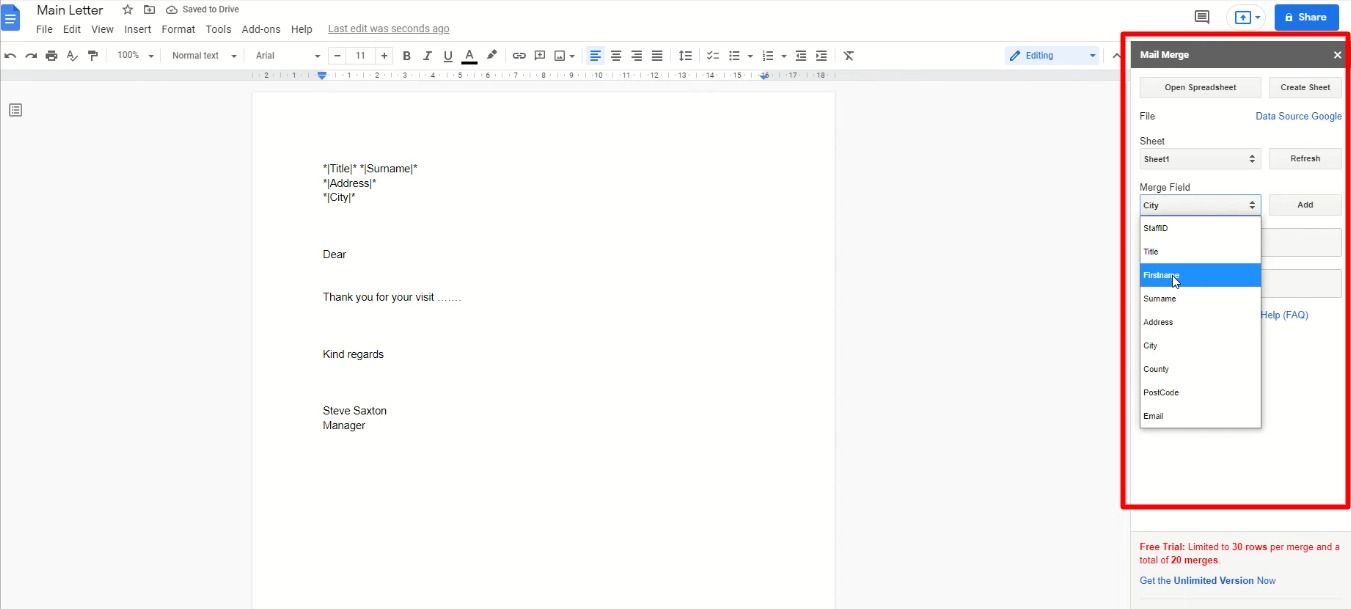
When ready, click Merge, the add-on will automatically generate multiple documents based on the number of rows in your sheet.

Pros:
- Simple and easy to set up with no coding required
- Fully cloud-based and supports team collaboration
- Works well for small to medium batch sizes
Cons:
- Lacks features like conditional, dynamic tables for flexible personalization
- Hard to scale as large batches can be slow and prone to errors or system limits
- You cannot easily implement multi-step approval processes, routing, or notifications
- Cannot automatically pull data from CRMs, databases, or APIs without custom scripting
- Export formats and automation options are minimal compared to enterprise software that supports dynamic PDFs, DOCX, or HTML
VBA Macros (Microsoft Word or Excel)
Best for: Developers or power Microsoft Office users who need flexibility
If you have an intermediate coding skill and want to avoid paying for external tools, Excel VBA (Visual Basic for Applications) offers a powerful way to automate bulk document creation in Microsoft Office.
Unlike Mail Merge, which relies on guided menus, VBA lets you write scripts that directly control Word or Excel. This gives you full flexibility over formatting, logic, workflow, and output.
With VBA, you can loop through hundreds, or even thousands, of records, merge data into templates, and automatically save each file as a separate PDF or DOCX. Plus, you can connect with other Office apps to expand your automation.
Here’s a helpful video tutorial showing how to set one up: Watch
Pros:
- High flexibility and customization: control exactly how data is inserted and formatted
- Scalable for large batches of documents
- Can integrate with other Office apps or databases for advanced workflows
Cons:
- Requires programming knowledge, which can be a barrier for non-technical users
- More setup time than simple Mail Merge; scripts need to be tested and maintained
- Errors in scripts can lead to document inconsistencies or failed merges
- Not cloud-native: works on local Office installations unless combined with OneDrive/SharePoint automation
3. Document automation software
Best for: Mid-size to large organizations managing thousands of documents or requiring multi-step approval workflows
When document creation happens at scale across teams or departments, enterprise-grade document automation platforms provide the flexibility, reliability, and integration capabilities that simple Mail Merge or VBA macros cannot. These systems are designed to handle thousands of documents, enforce approval workflows, and connect seamlessly with other business tools.
While some softwares can feel complex and expensive, solutions like Docupilot make automation easy.
Let’s walk through how it works using a bulk invoice example.
Sign up for a 14-day free trial, log in to your Docupilot dashboard, and click “Create a New Template.”

You’ll find the option to build a template from:
- Scratch with the online editor
- Choose one from the template library
- Upload an existing document (Word, PowerPoint, Excel, or fillable PDF), or
- Use Create with AI to generate a layout automatically
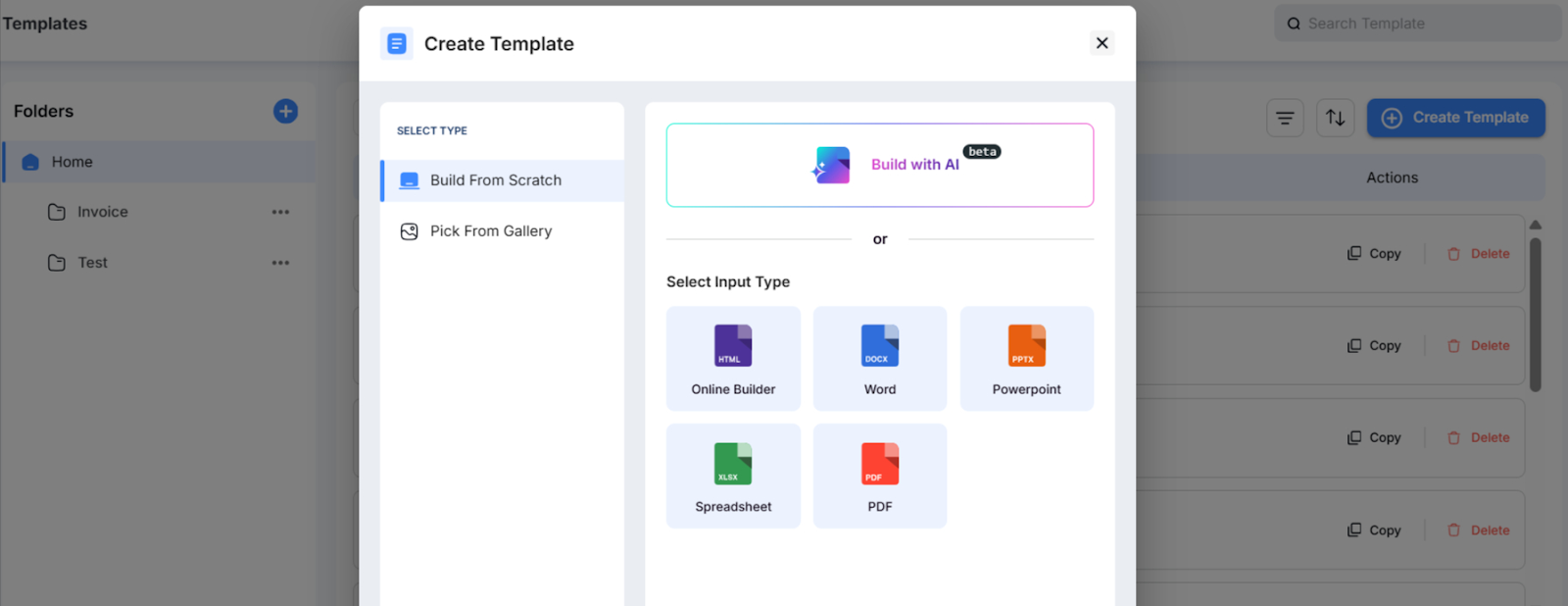
Let’s create our invoice using the AI builder. Click “Create with AI” name your template and add a short description and click “Create Template”
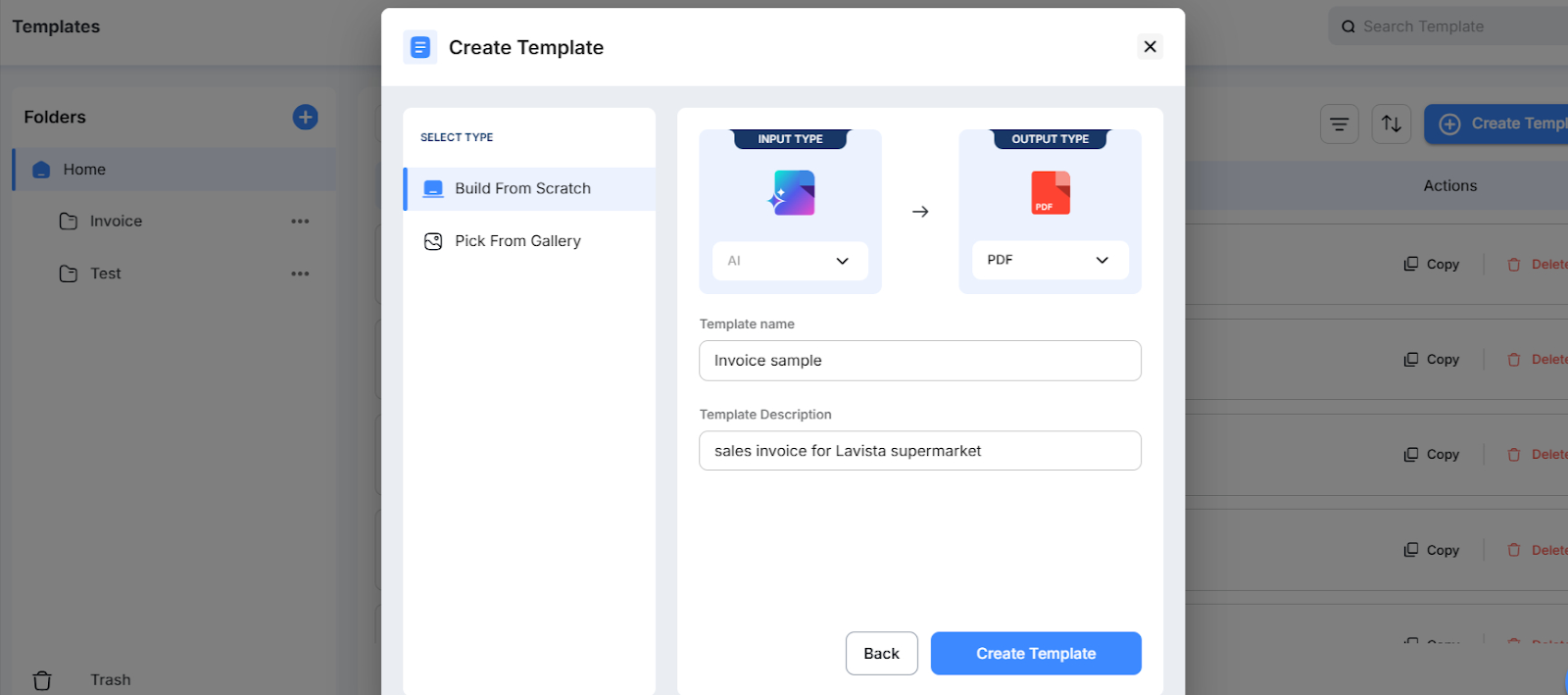
The AI will suggest prompts to help you structure your document. Select or write your prompt and send.

Based on the second prompt, here’s the result:
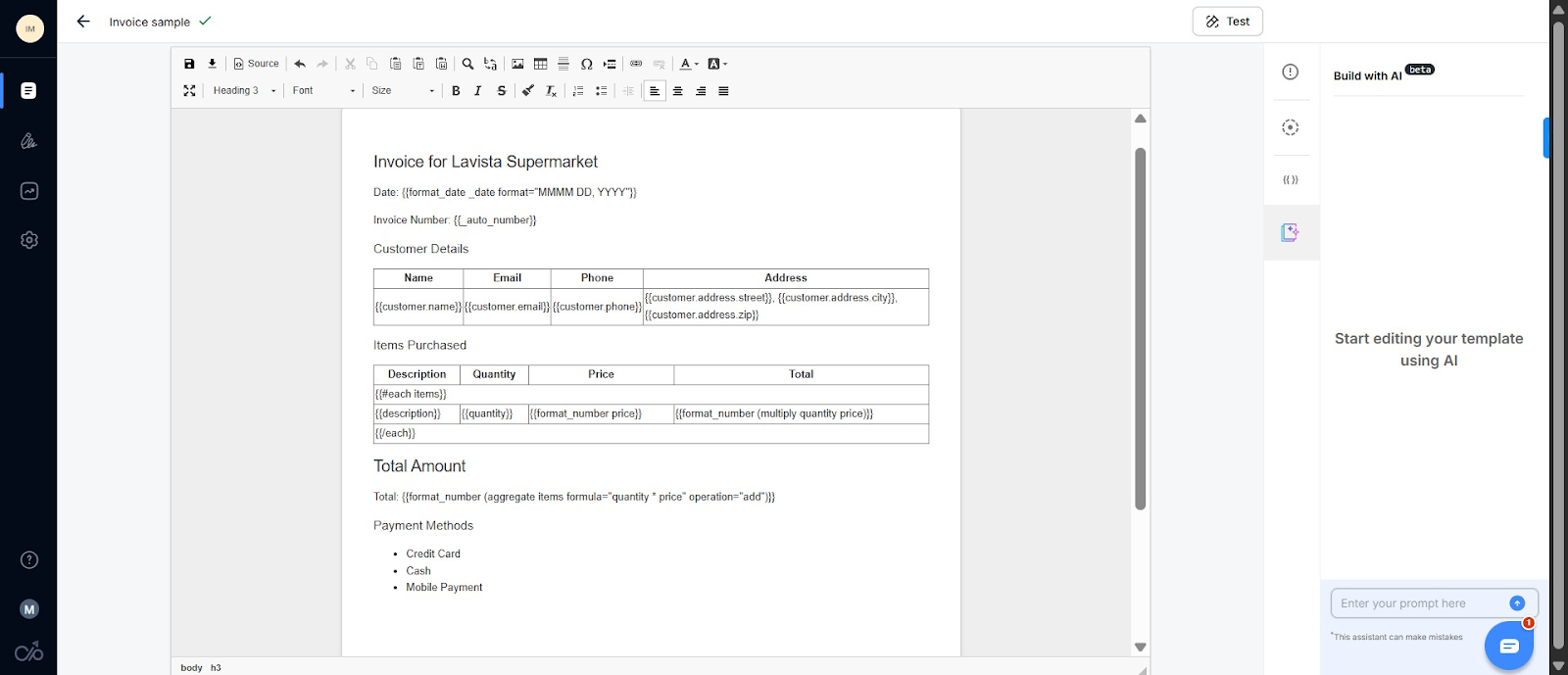
You can edit the template using the formatting tools above to adjust it as needed.
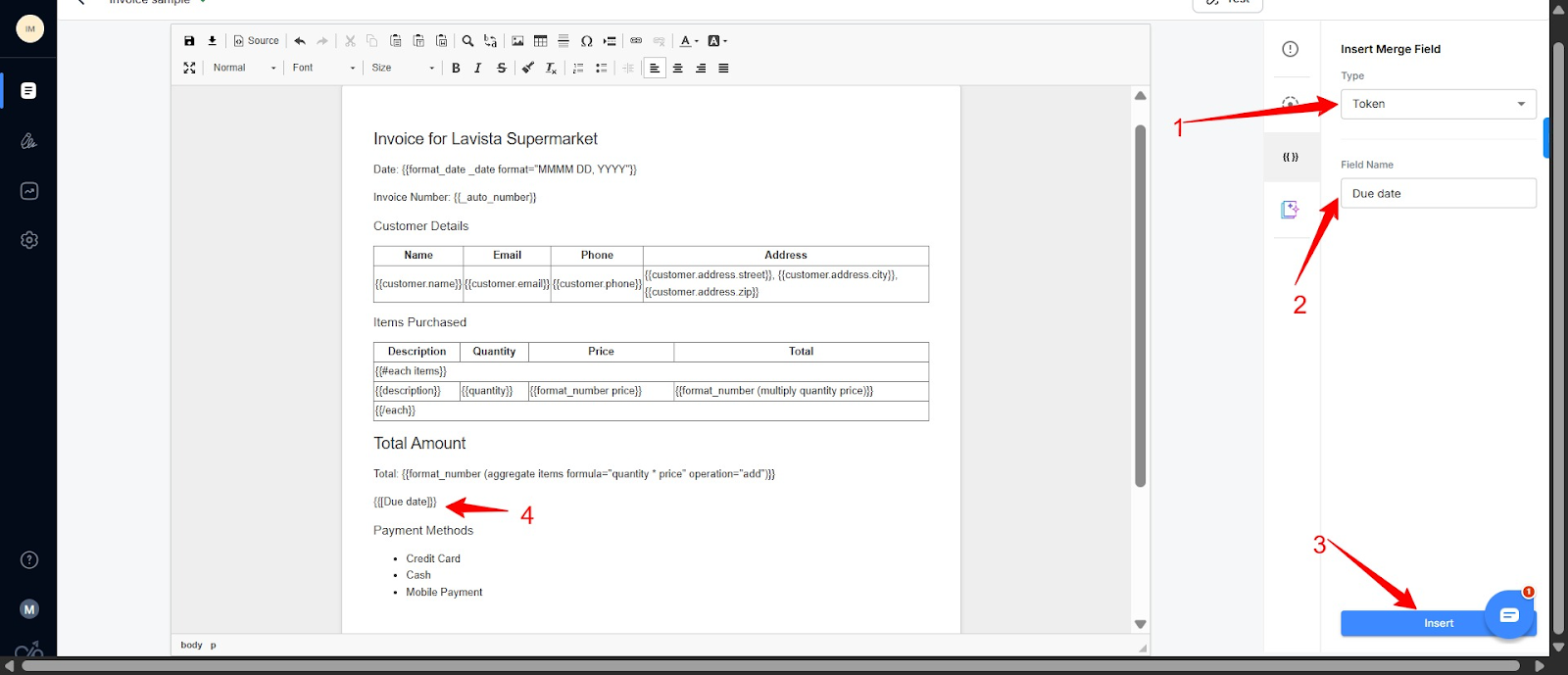
Now, let’s prepare it for merging. You’ll notice the AI added placeholders like {{ClientName}}. In Docupilot, these are called Tokens: they help personalize your document.
To add one manually, click “Insert Field” in the right sidebar, set the field type to Token, name it, place your cursor in the desired location, and click Insert.
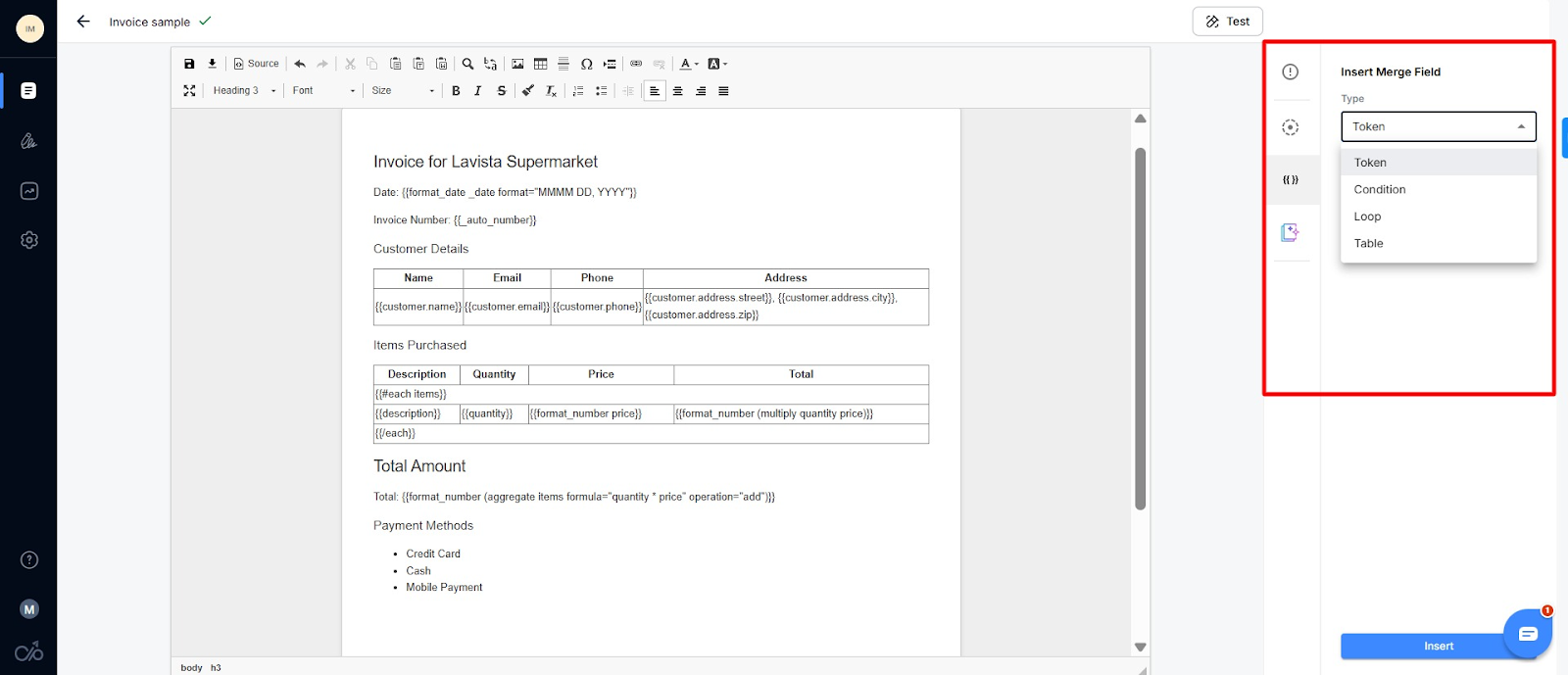
Other merge field types include:
- Condition: Displays content only when certain criteria are met (for example, showing a discount note when a “Discount” field isn’t blank)
- Loop: Repeats content such as line items in an invoice
- Table: Dynamically populates tables with rows of data
It’s time to connect your data source such as sheets, CRMs, or forms. Click Bulk Merge at the top to link your data source. Docupilot lets you pull data in several ways:
- Data capture form: Collect new information directly from users
- API Integration: Pull live data from CRMs or databases
- Bulk merge: Upload a CSV or Excel file
- Zapier or Make: Automate triggers from other apps
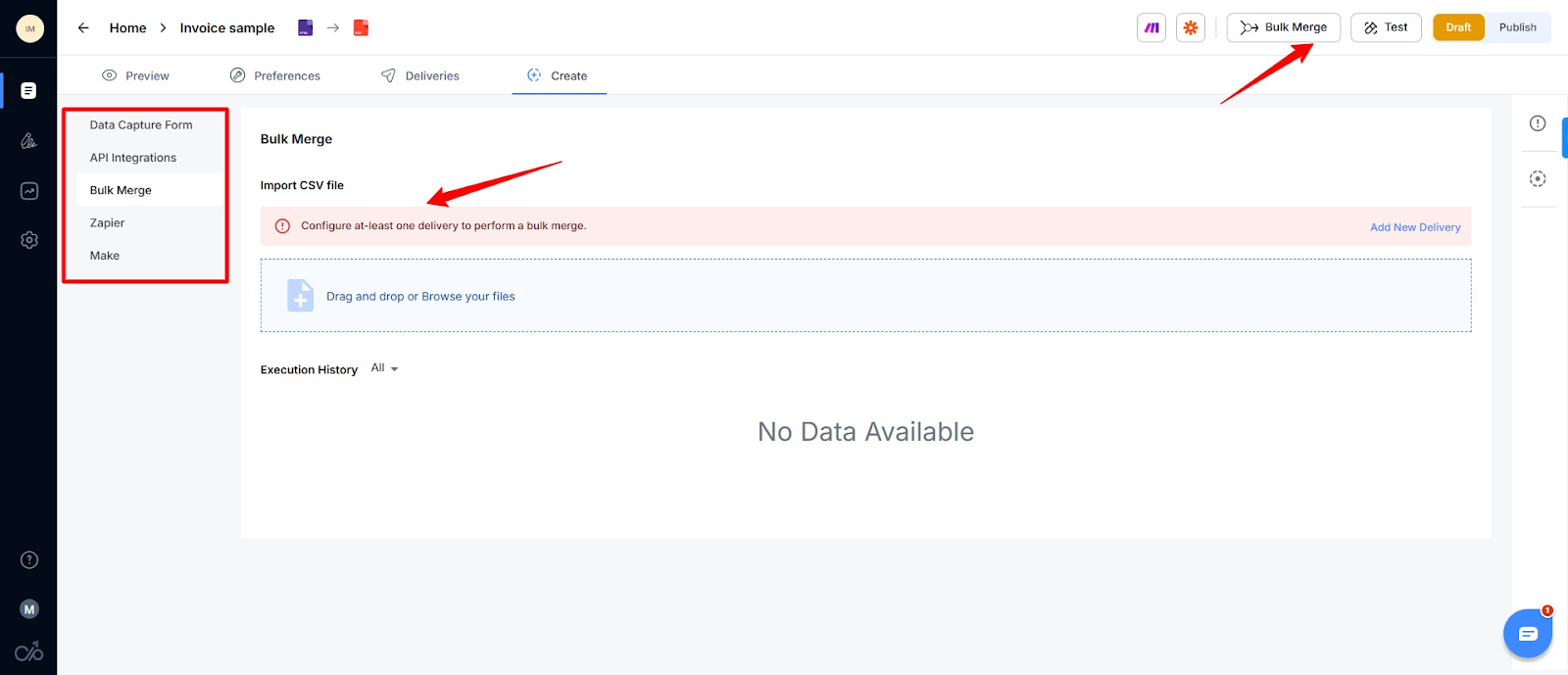
For our invoice example, we’ll use Bulk Merge and upload an Excel sheet. Before proceeding, you’ll need to set your delivery—this determines where your documents will be sent. Docupilot offers options such as email, cloud drive, or signature routing.
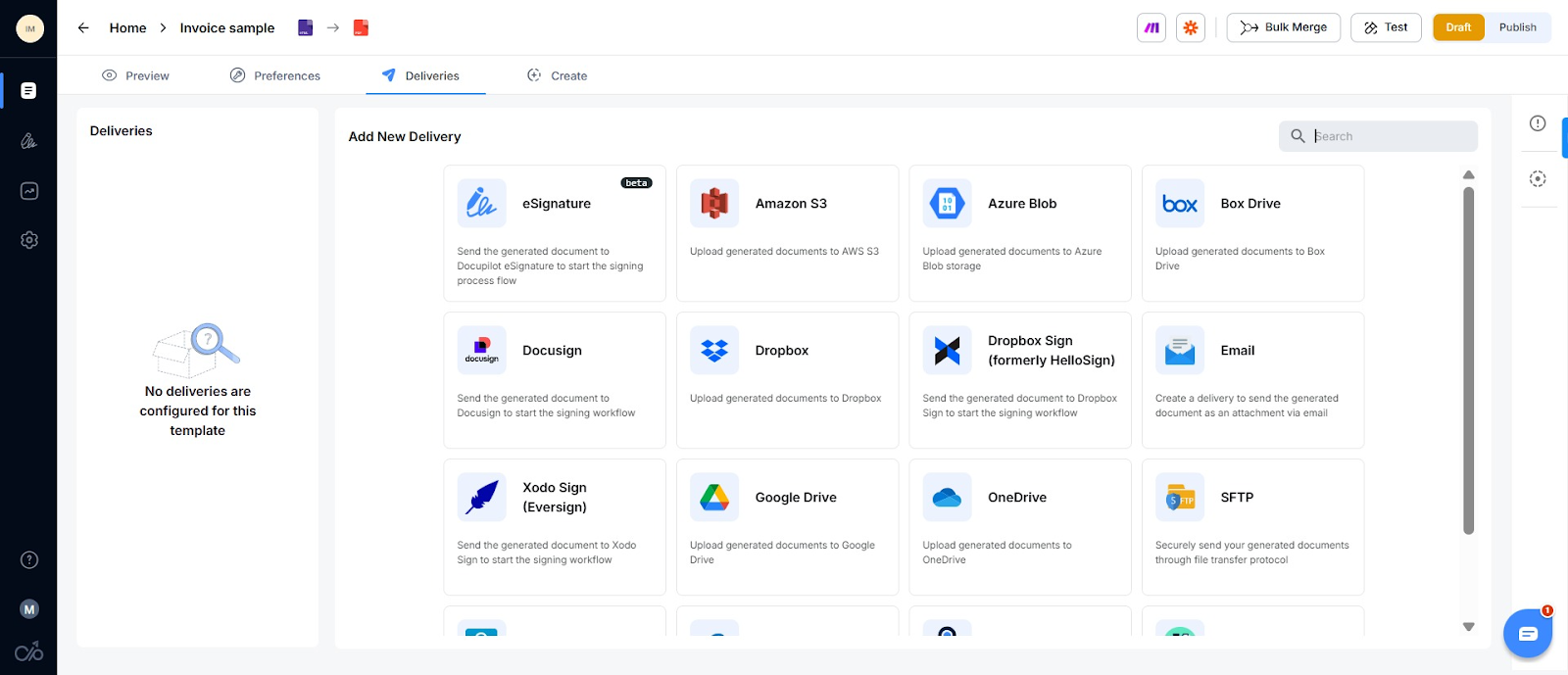
For email delivery, enter the address you want to send the documents to, or map it to a column in your data so each invoice is sent to the correct recipient. You can also include an email body or attachments.
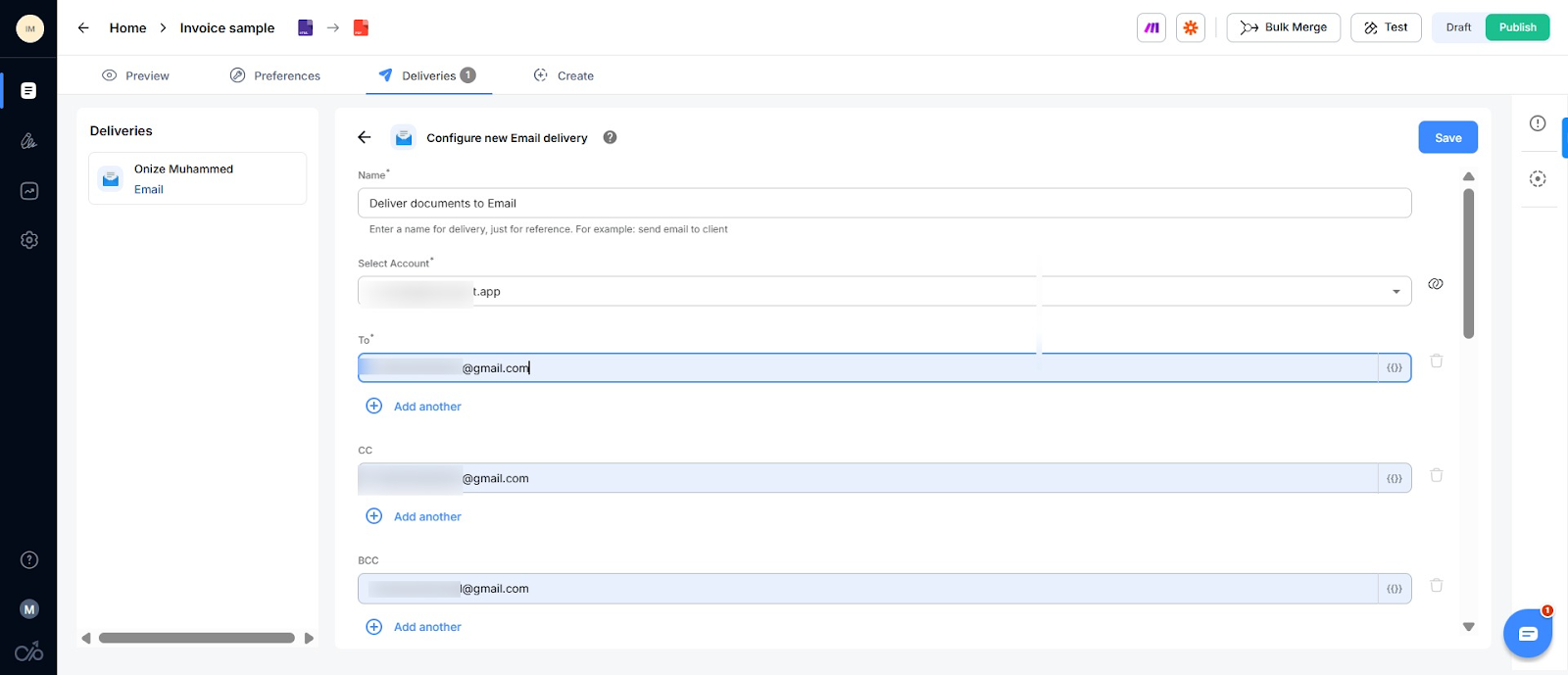
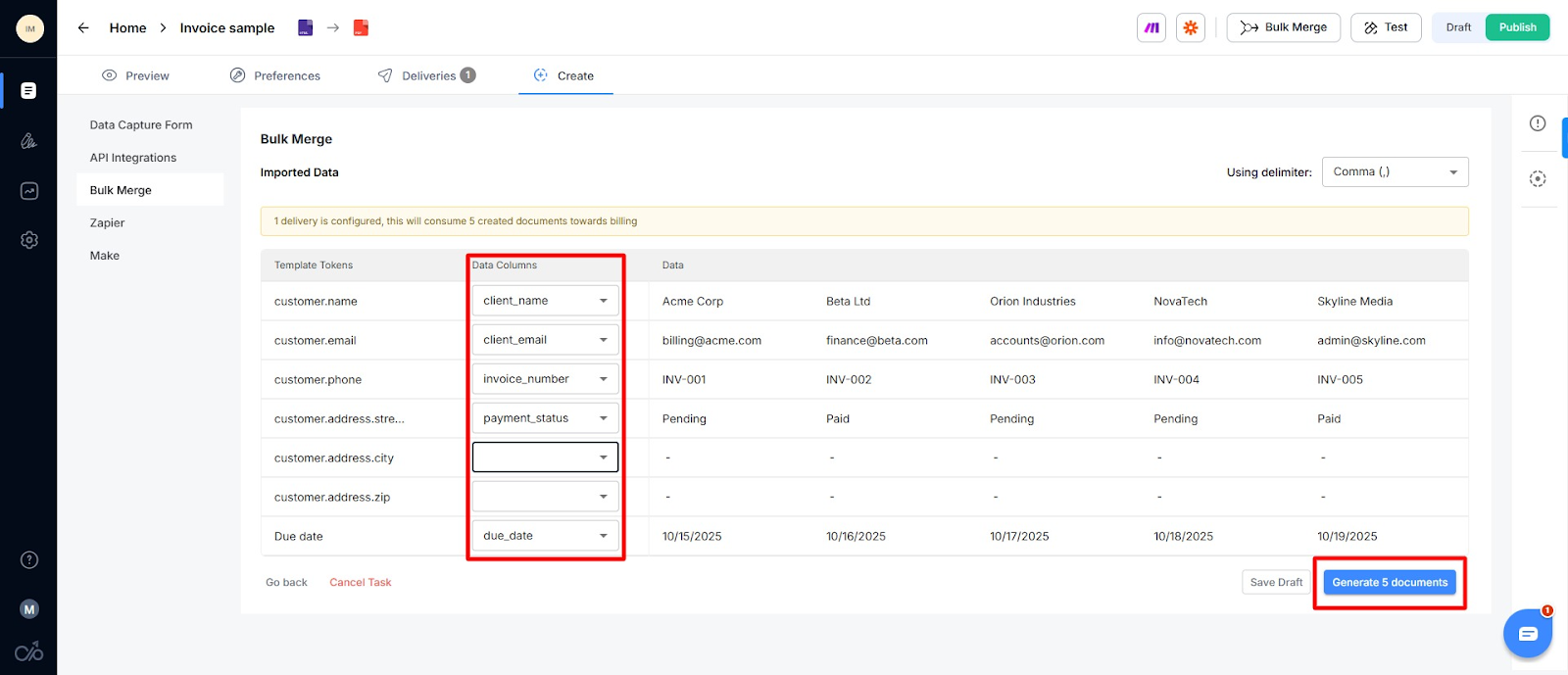
Upload your CSV file and match the column names to your token names in the template so the system knows which values to insert, then click Generate. Docupilot will generate bulk documents based on the number of columns in your sheet and send.
Check your email for a link to your generated documents.
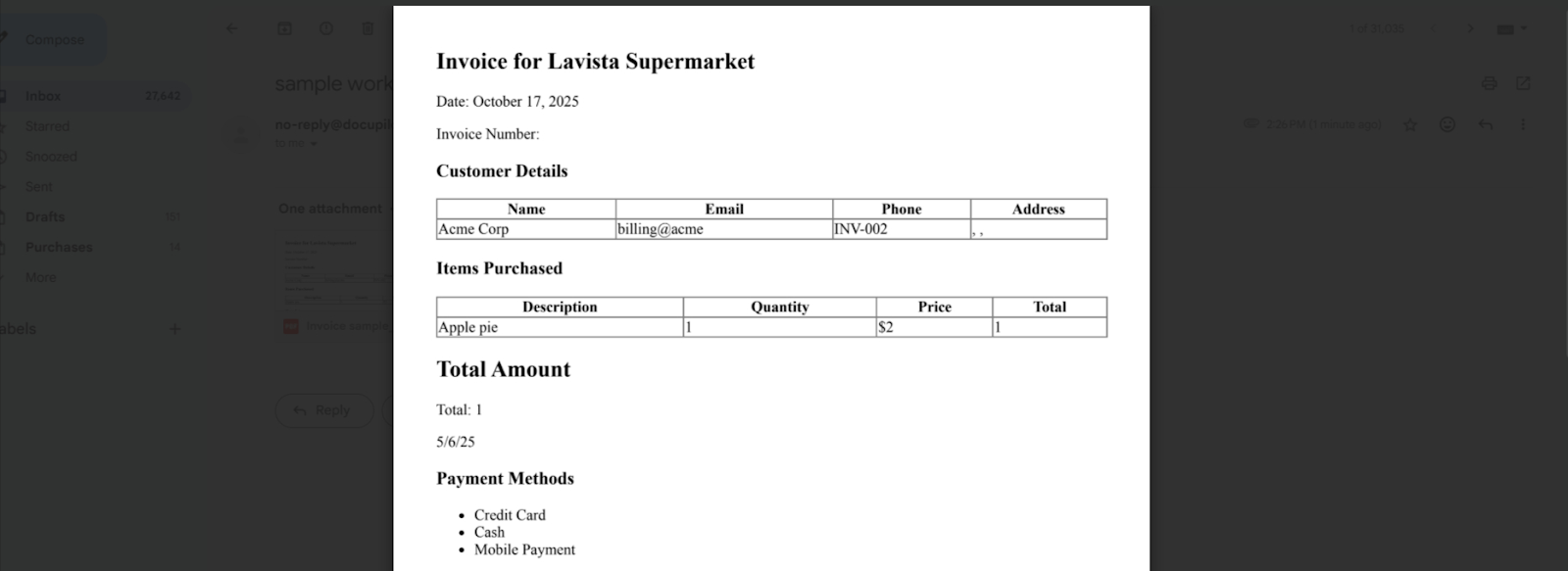
There you have your personalized document
Pros:
- Scalable for large teams and high-volume workflows
- Supports approval routing, conditional logic, and multi-template setups
- Integrates with CRMs, ERPs, and databases
- Secure and compliant with data regulations
Cons:
- Higher cost compared to Mail Merge or VBA
- Longer onboarding and configuration
- May require admin-level setup for enterprise environments
What to look for in a document automation software
Choosing the right automation tool can make or break your workflow. With so many platforms promising speed and efficiency, it’s easy to get lost in the noise. Here’s what truly matters when evaluating a document automation solution to generate bulk documents.
- Template flexibility and logic: Flexibility in template design is crucial for scale. The best tools allow smart dynamic content like conditional logic and loops, so you can hide or repeat sections based on the data being merged. Support for multiple formats, such as PDF, Word, or HTML, ensures your documents meet different business needs without extra rework
- Integration and data connectivity: A scalable system connects directly to where your data already lives. It integrates with CRMs, spreadsheets, or databases to avoid workarounds. API and webhook support also allow real-time automation, so new form submissions or CRM updates can instantly trigger document generation
- Collaboration and workflow control: When multiple teams are involved, you need more than document generation; you need structure. Look for role-based access controls, approval workflows, and audit trails that make it clear who did what and when. This keeps large-scale operations organized and compliant
- Compliance and security: Security and compliance should never be an afterthought. Tools handling sensitive information must offer encryption in transit and at rest, regional data residency, and adherence to standards such as SOC 2, ISO 27001, or GDPR. Strong authentication methods like SSO and two-factor authentication add another layer of safety
- Scalability and pricing model: A reliable system should grow with your needs. Watch for hidden limits such as document caps or API throttling that may slow you down once usage increases. Enterprise-grade pricing models often scale more gracefully, letting you expand capacity without outrageous cost spikes
- Support and ecosystem: Even the most capable tools are only as good as their support. Look for platforms with responsive help channels and detailed documentation. Frequent updates and clear release notes also indicate a healthy product that can adapt as your business evolves
Case study: How document automation saves time, reduces cost, and improves accuracy
To show what’s possible when you move from manual document creation to full automation, here are two real-world examples of organizations that cut hours of work, reduced errors, and scaled their operations without adding headcount.
Oxford Scholastica Academy improved accuracy and efficiency with personalization
Oxford Scholastica Academy, which runs residential and online summer programs for teens worldwide, faced several document workflow headaches before 2020.
They were using a legacy document automation service whose costs kept rising; many documents, visa invitation letters, and acceptance certificates were produced manually, leading to errors. Seasonal tasks, like over 300 personalized greeting cards each year, consumed tens of hours. With a small team, these tasks drained time and resources.
When they adopted Docupilot, they set up templates for all recurring document types, integrated with Zapier for automation triggers, and began bulk-generating letters, certificates, holiday greetings, and more.
Results:
- Tens of hours saved annually on repetitive tasks like greeting cards
- Zero manual errors in sensitive documents like visas and acceptance letters
- Faster document turnaround from hours of manual work to seconds
- No need to increase staff headcount, despite growing document volume
Holberton School cut administrative workload by 50% with automation
Holberton School runs tech training programs across more than 30 campuses, including 12 schools in France. As enrollment and administrative work increased, the school was overwhelmed by paperwork; every certificate, contract, and attestation was created by hand, which was slow and error-prone.
When Holberton adopted Docupilot, they standardized templates and used dynamic data fields. They integrated with their existing tools (like a CRM via Zapier) so documents could be generated automatically rather than manually.
Results:
- 50% reduction in administrative workload
- Document creation that used to take minutes now takes seconds
- Errors (like wrong birthdates or enrollment periods) dropped to almost none
Your turn: Move from repetition to automation
Every hour spent manually creating documents is an hour lost to more meaningful work. Bulk document automation transforms that repetitive grind into a streamlined, reliable process. With the right tools, you can generate hundreds of invoices, contracts, certificates, or letters in minutes instead of hours, while eliminating errors and ensuring consistency across every file.
While simple tools like Mail Merge or VBA macros can help with small tasks, feature-rich document automation software is best for scalability. Platforms like Docupilot integrate directly with your data sources, support dynamic templates, enforce approval workflows, and provide robust security along with reliable customer support. See the full range of document generation capabilities by document type and industry.
If you’re ready, sign up for Docupilot’s 14-day free trial and start automating your first batch of documents today.
Learn how to automate document creation with Docupilot


Contents
Stop rebuilding the same document by hand.

Generate and sign in one workflow.
Fifteen minutes back, per application.