





Key takeaways
- A document management workflow runs through five stages every time: trigger, populate, condition, deliver, and archive. The sequence is the same, irrespective of the tool you use.
- Workflow automation creates documents from data, while a document management system only stores files that already exist.
- A workflow pays off in two situations: when monthly volume crosses 50 documents or when each contract needs manual edits before going out.
- Most setup projects fail because teams build the template before mapping the data. Map fields first, build templates second, and finally test with real records.
- Docupilot implements every stage of the mechanism, with conditional logic for variations, bulk generation from CSV uploads, 70-plus integrations, and a SOC 2 audit layer.
In September 2025, Tractor Supply Company got hit with a $1.35 million fine. The reason was that their privacy notices were outdated, their job applicant forms left out CCPA rights information, and contracts with third parties were missing required clauses.
To fix it, they rebuilt how documents move through their business. They created a workflow where templates updated automatically when laws changed, contracts refreshed on a schedule, third-party agreements stayed in sync, and every change left an audit trail.
After this, their notices, contracts, and applicant forms were up to date.
This is what a document management workflow does. Any team handling contracts, offer letters, or security and compliance documents should have a document management workflow.
This guide walks you through how the workflow runs, where teams get the setup wrong, and which process to automate first.
What is a document management workflow?
A document management workflow is the process that automatically creates, populates, routes, delivers, and archives your business documents.
It starts when a data event in your source system fires a trigger. From there, live data populates your template, conditional logic shapes the output, and the finished file reaches its destination. Once it is delivered, the system archives a record of every step.
For enterprises managing thousands of documents monthly across multiple departments, this workflow becomes a five-stage system that integrates data sources, templates, approval chains, and compliance requirements. Learn how enterprise document management systems structure this workflow to handle complexity at scale.
Document management and document workflow automation are two different things
Document management is about storing files you already have. A document management system (DMS) gives you folders, version control, search, and access controls so the right people can find the right document later.
But a DMS only helps once a document already exists. It does nothing to help you create that document in the first place. That is where document workflow automation comes in.
With a document management workflow, you can populate the template with live data from your source system, apply conditional logic to shape the output, generate the document, and route the finished file as a continuous automated sequence. This is what people mean by document generation.
That distinction matters because it changes what you should evaluate. If your team's pain is finding files, look at a DMS. If your team's pain is creating files, look at workflow automation.
The rest of this article focuses on the second one.
The five stages in a document management workflow
Every document management workflow runs through five stages: trigger, populate, condition, deliver, and archive. Let's look at each one in detail.
Stage 1: Trigger
The trigger is where the workflow begins. It is an event in one of your business systems, signalling that a document needs to be created.
The most common pattern is a CRM event. When a deal hits Closed-Won in HubSpot or Salesforce, a contract generation workflow fires.
CRMs are one of many trigger sources. Other examples include an HR management system (HRMS) like BambooHR firing an offer letter when a candidate accepts, an Airtable row firing a project kickoff document, a web form submission firing an NDA, and a direct API call firing any workflow built into your internal tools.
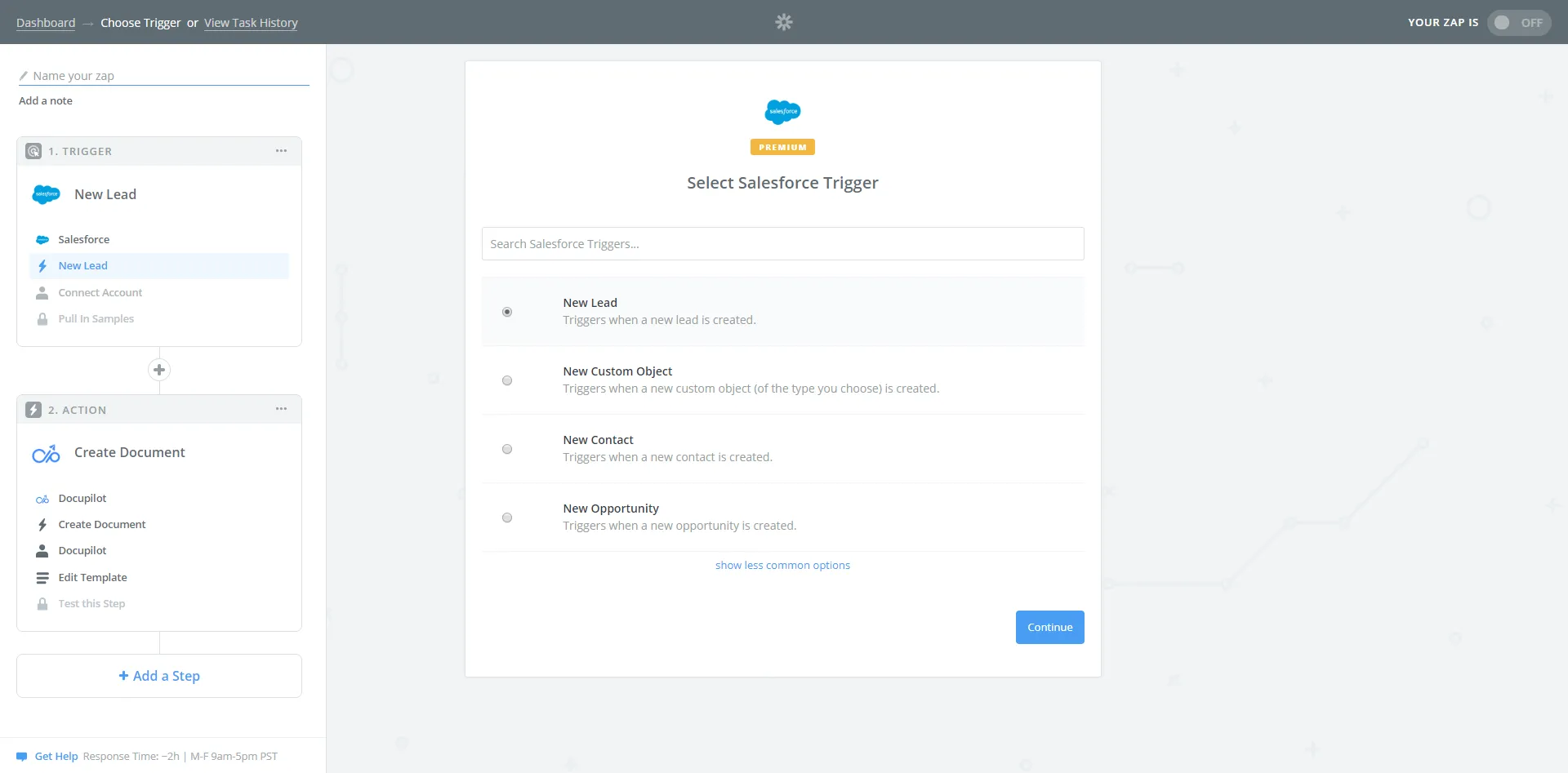
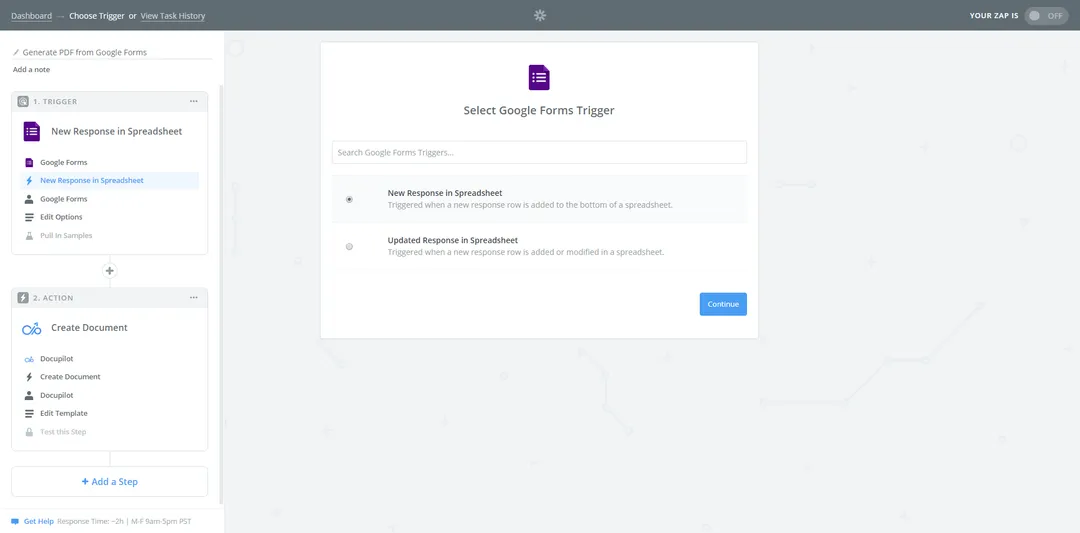
Docupilot's Zapier integration page lists two clear examples of this stage.
The first is a CRM trigger. When a new lead is added to the CRM, a workflow fires. The lead's details are pulled into a proposal template, and the proposal is emailed to the lead automatically.
The second is a form trigger. When someone submits a response through Google Forms, Wufoo, Typeform, or FormStack, a workflow fires. The form data is pulled into a PDF template, and the finished PDF is emailed to the recipient.
Your job at this stage is to decide which business event maps to which document.
Stage 2: Populate
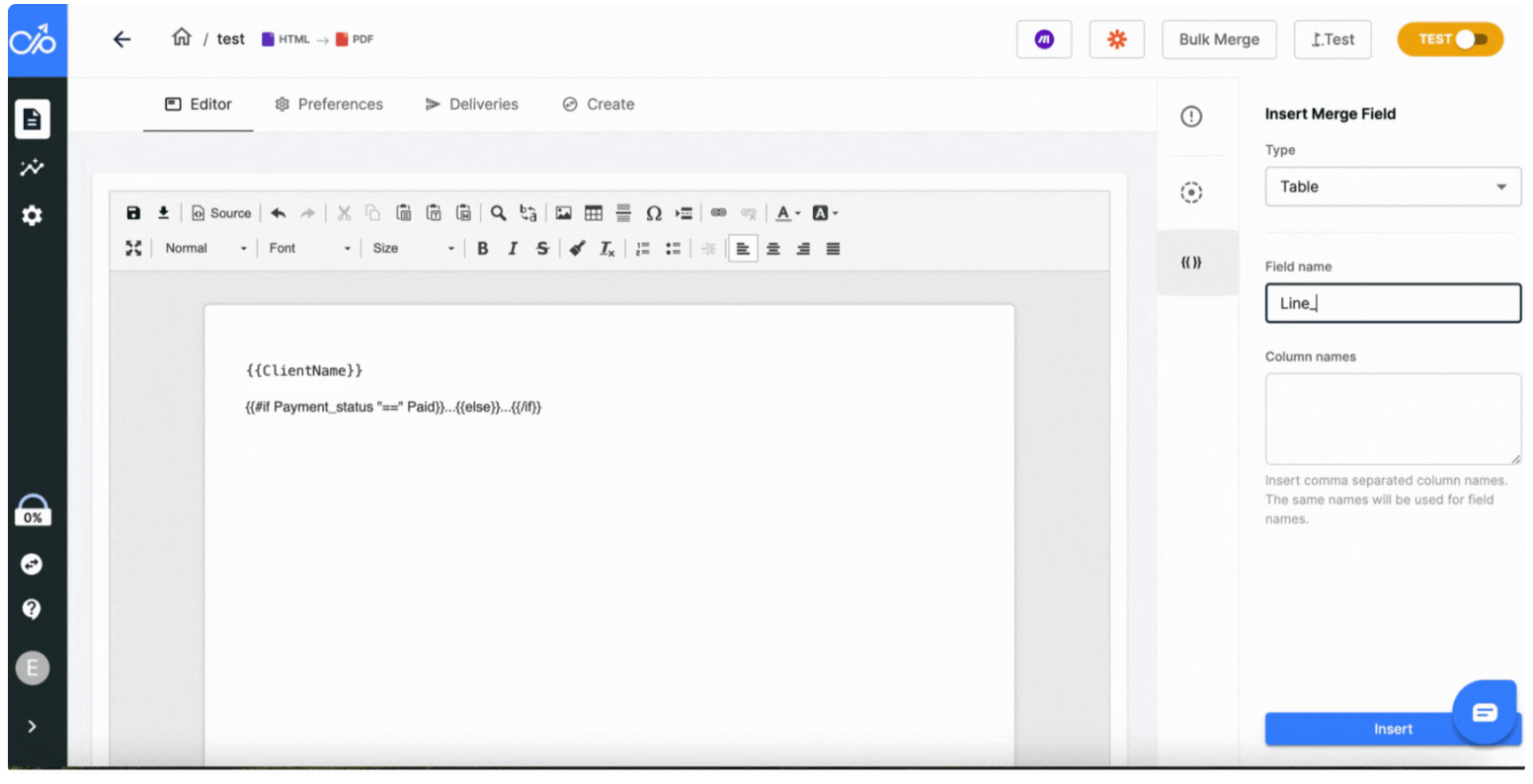
Every template contains placeholders called merge fields. A merge field is written in double curly braces, such as {{client_name}}, {{deal_value}} or {{start_date}}. When the trigger fires, the system replaces each placeholder with the actual value pulled from the data source.
For example, {{client_name}} becomes Acme Corp. {{deal_value}} becomes $45,000. {{start_date}} becomes 8 April, 2026.
This mapping is configured only once. Once it is done, the same template generates a new document for every record that enters the workflow.
Some workflows go a step further. They use grouped data, where one record holds many smaller pieces of information together. A client record, for example, might hold a first name, a last name, an email address and a phone number all under one client object.
To pull each piece, you use a dot. The first name is written as {{client.first_name}}. The last name is written as {{client.last_name}}. The dot tells the system which sub-field to look for inside the group.
You can see this syntax in use in Docupilot's Document Builder documentation.
Stage 3: Condition
After the template is filled with data, conditional logic decides which sections, clauses or layouts appear in the final document. The system looks at a data value, and based on that value, it shows or hides a part of the template.
Here are some common conditional examples:
- If the deal value is more than $50,000, a detailed indemnification clause is added.
- If the client is in the European Union, GDPR-specific data processing terms appear.
- If the contract type is an annual subscription, the renewal terms section is included.
- If the client tier is enterprise, a custom master service agreement replaces the standard terms.
Inside the template, you define these conditions once. From that point on, they apply to every document that template generates. One master template can handle dozens of variations of the same document.
Stage 4: Deliver
Once the template is populated and the conditional logic has shaped the output, the finished document is produced. The output format depends on what the client needs. A PDF is most common, though the same setup can also generate DOCX, XLSX, PPTX, or HTML files.
The document then moves to wherever the workflow specifies. A proposal might land in a prospect's inbox, while a copy is filed in a shared Google Drive folder for the team. A signed-ready contract is forwarded to an e-signature service such as DocuSign, and the original PDF is attached to the deal record inside the CRM.
Stage 5: Archive
After delivery, the system stores a permanent record of the document and the workflow run that produced it. This is the archive.
Every generated document is logged with a full audit trail. The log captures four pieces of information for each run:
- The timestamp
- The trigger source
- The template version that was used
- A snapshot of the data that filled the template.
If a question arises six months later about why a particular contract was generated the way it was, the audit log answers it.
The master template itself is also versioned. When the template is updated, the change is recorded, and every future document generated from that template uses the latest version.
For regulated industries such as legal, healthcare, finance, and insurance, this layer is what satisfies compliance requirements and audit reviews.
Here is the full mechanism at a glance:
The two signs your team needs a workflow
A document workflow is worth building when one of two conditions is true: your document volume is high enough that manual work is expensive, or your documents need so much customization that manual edits keep introducing errors.
When you produce 50+ documents a month
This is the high-volume, high-repetition scenario, where the team produces invoices, offer letters, lease agreements, certificates, and onboarding packets in volumes.
In this case, the structure of each document is the same every time, and only the data inside it changes.
For example, take an HR team generating 40 offer letters per quarter. Each one takes 15 to 20 minutes to produce manually because someone copies the candidate's name, title, salary, start date, and reporting manager from an HRMS like BambooHR into a Word template. That is 10 hours of manual work per quarter, or 40 hours a year. The math gets worse as the hiring volume grows.
With a workflow, you handle all of it. The new hire record triggers the workflow, and the template fills with the candidate's data. Conditional logic picks the right variation for full-time, part-time, contractor, or consultant. The offer letter goes out for e-signature, and ten hours of quarterly work become a one-time template setup.
When contracts need manual edits
Some teams produce few documents but customize each one heavily. A legal or sales operations team is a common example. They might send only 20 to 30 contracts a month, but each contract has clauses that change depending on the client.
For instance, a client in the European Union needs a data protection clause, a client buying a large package needs a stronger liability clause, and a client signing a long-term deal needs an early termination clause.
Conditional logic fixes this. The clauses are written once, inside a single master template, and each one is tied to a rule. When the workflow runs, the rules check the data and add the right clauses automatically. The team reviews the output instead of building it.
How Docupilot powers workflow automation
The five-stage mechanism described above is the standard model for document workflows. This section walks through how Docupilot implements each part of it, with the actual syntax, integrations, and controls available to the team building the workflow.
Conditional logic: One template, hundreds of variations
Conditional logic is the single biggest reason document workflow automation works at scale. Every other capability assumes you have one template per document type. Conditional logic lets you have one template per business outcome, regardless of how many variations the document needs.
Take a real estate lease agreement. A single template can handle:
- Residential and commercial properties
- State-specific disclosure requirements
- Pet policies (like allowed, restricted, deposit required)
- Parking addendums (such as assigned spot, unassigned, garage)
- Utility responsibility (including tenant pays, landlord pays, split)
Each of these decisions lives in your database as a field value. The conditional logic inside the template reads those values and assembles the lease accordingly.
Sunnon & Charlotte, a property management company in Charlotte, North Carolina, reduced lease preparation time by 80% after connecting their property database directly to a conditional Docupilot template. What previously took hours of manual field-by-field assembly is now generated in minutes.
Bulk generation: From CSV to hundreds of documents
Some workflows do not run on a per-record trigger. They run in batches, where the team needs to produce hundreds of documents in a single sitting. Docupilot's Bulk Create feature handles this case.
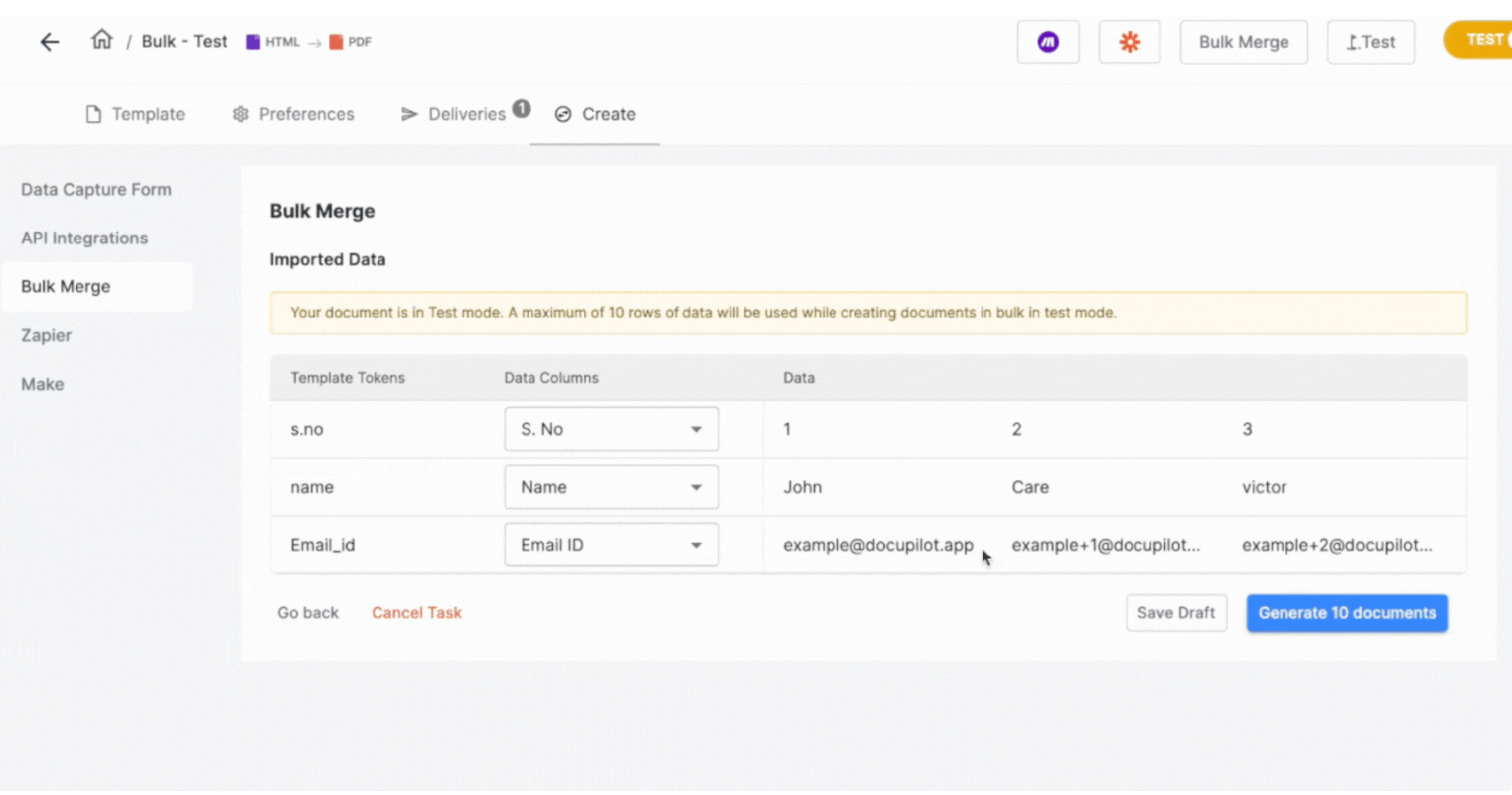
The team uploads a CSV or Excel file, where each row contains the data for one document. The columns in the file map to the merge fields in the template. Once the upload is configured, the team clicks Generate, and Docupilot produces all the documents in a single run.
If the workflow needs to push the documents to Google Drive, Dropbox, OneDrive, or Amazon S3 instead, that also happens in the same run. The team can also route the batch for e-signature, all without breaking the run into separate steps.
This is how an HR team can produce 500 offer letters for a campus recruitment drive in a single batch, or how a property management company can generate 200 lease renewal notices on the first of every month.
Organizations that effectively manage their information are 1.5x more likely to report increased revenue, according to AIIM's 2024 industry survey.
Integration architecture: How data reaches the template
A workflow only matters if it connects cleanly to the systems your team already uses. Docupilot is built around four input paths and four output paths, which together cover almost every common stack.
Several patterns connect your data source to the template engine, depending on your stack.
Middleware (Zapier, Make, n8n, or Workato): Best for non-technical setup. Zapier listens for a new deal at the "Closed-Won" stage in Salesforce, then passes the deal data to the template engine. Setup takes under 15 minutes for most workflows.
Native integrations: Best for tools you already live in. An Airtable extension installed directly in your base maps Airtable fields to template variables. Generation triggers from inside Airtable's interface or via automation scripts. The same pattern works for HubSpot, Salesforce, BambooHR, and 70+ other platforms in Docupilot's integration directory.
REST API: Best for engineering teams or custom internal tools. A POST request to the template endpoint with a JSON payload triggers generation and returns a download URL. The documentation covers authentication, rate limits, endpoints, and webhook callbacks.
For more information on Docupilot’s API, you could look here.
Cloud infrastructure runs underneath all of these patterns. Your template engine, integration layer, delivery system, and storage layer operate from the same hosted environment.
Map the data before you build the template
Most teams build the template first, then discover that the field names in the source system do not match the placeholders. Then, the template is rebuilt, and integrations are reconfigured. The test data is regenerated.
The fix is in sequence. Map the data, then build the template, then test with real records.
What this means for your team
A document management workflow becomes self-running when your data source, template, conditional logic layer, and delivery system connect once. The setup is one-time. The automation runs every time after that.
Pick the document with the highest send frequency and the lowest tolerance for error. Automate that one first. The next one gets easier.
If you want to see the mechanism in action, start a free Docupilot trial. Thirty days, full access to conditional logic, multi-format templates, bulk generation, and 70+ integrations.
Frequently asked questions
- Is document workflow automation secure for sensitive data?
Yes. Established platforms hold SOC 2 Type II and ISO 27001 certifications, encrypt data in transit and at rest, offer role-based access controls, and support single sign-on. For healthcare workflows, look for HIPAA compliance and a Business Associate Agreement.
- How much does document management workflow software cost?
Pricing varies. Most platforms use usage-based pricing tied to document volume, starting around $29 per month for small teams and scaling to enterprise plans. Per-user pricing is becoming less common in 2026.
- Which industries benefit most from document workflow automation?
Legal, HR, finance, real estate, insurance, and healthcare see the highest adoption because each produces large volumes of structured documents. Any team handling repetitive, data-driven paperwork can capture meaningful time savings.
- Can document workflows integrate with e-signature platforms like DocuSign?
Yes. Document workflow platforms typically integrate with DocuSign, Adobe Sign, HelloSign, and OneSpan through native connectors or middleware tools like Zapier. Some platforms, including Docupilot, also offer a built-in e-signature module so signing happens inside the same workflow.
- How do I get my team to adopt new document workflow software?
Start with one workflow first. Pick the highest-volume, highest-pain document and automate it. Once one team sees the time savings, adoption spreads naturally to other departments and other document types.
Learn how to automate document creation with Docupilot


Contents
Stop rebuilding the same document by hand.

Generate and sign documents in one workflow
Save ~15 minutes per application