





Key takeaways
- A document OCR API reads scans, photos, and image-based PDFs. It turns the text in those files into data your software can use.
- It helps teams process invoices, receipts, applications, forms, statements, identity documents, and old paper records.
- Some providers also offer data-extraction features that can identify tables, form fields, document types, and specific details such as invoice numbers or addresses.
- Scan quality, document layout, language, and the range of files you receive can affect the result. Test the API with the documents your team handles every day.
- For important documents, keep the original file and review unclear results before using the information to update a record or create a new document.
Organizations receive information in many forms, including scanned PDFs, photographed receipts, paper applications, statements, identity documents, and files with complex tables.
In a scanned PDF or photo, the words are often part of the image. Your software needs to read that image before it can search the text or use details from the document in a workflow.
A document OCR API helps with this. Your application sends the file to the API. The API reads the page and returns the text it finds. Some APIs can also identify tables, form fields, addresses, invoice numbers, and other details.
Reading a clean page of printed text is usually easy. But what if you have poor-quality scans, handwritten notes, complex tables, mixed page layouts, and documents from many different sources?
Your team may also need to identify the document type, extract specific details, verify the results, and review anything unclear before using the information.
This guide explains how a document OCR API works, how it differs from data extraction, what affects accuracy, and what to check before choosing one.
How does a document OCR API work?
An OCR API helps move information from a document into the tools and workflows your team needs. Here is how that happens.
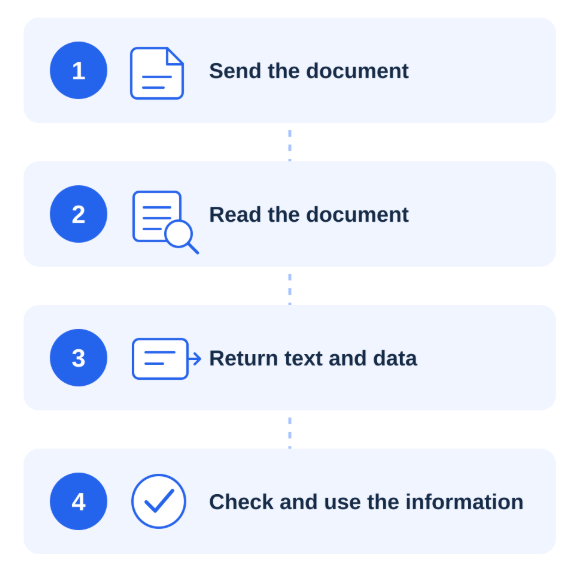
1. Your software sends the document
Your application sends a PDF, image, or file link to the OCR API. You can also tell the API what type of document it is, which language to expect, and which details you want it to find.
2. The API reads the document
The API reads each page and looks for the text and details you asked it to find.
Smaller files may return a result straight away. Longer or more complex documents may take more time, and your software can be notified when the result is ready.
3. The API returns text and structure
The API can return the full text, text from each page, tables, and the details it finds. Some APIs also show where each value came from and how confident they are in the result.
This helps your team check the information against the original document.
4. Your team checks and uses the information
Your application can compare extracted values with business rules. For example, if a result is unclear, send it to a person for review. Once it is approved, send it to the next system.
Keep the original document available for review. If the API returns page locations and confidence scores, retain those alongside the extracted values to help reviewers check the results against the source.
What affects OCR accuracy?
OCR accuracy depends on the source document and the type of information you need to recover.
- Scan quality: Low-resolution scans, shadows, skewed pages, faint printing, handwritten notes, and cropped text make recognition harder.
Test the API with the actual files your team receives, including low-quality examples.
- Layout complexity: Simple documents are easier to read than documents with several columns, complex tables, stamps, headers, handwriting, or repeated sections.
The API may read the words correctly but still place a table value in the wrong row or column.
- Language and character support: Check that the API supports the languages, scripts, and number formats that appear in your documents.
This is important for documents with different languages, local addresses, names, and date formats.
- Document variety: A consistent form or invoice layout is easier to process than thousands of layouts created by different organizations.
Test each important document type and the different versions you receive.
- Extraction rules: Decide what a valid result should look like. For example, a date should be returned in a specific format, an invoice total should be a number, a customer ID should match an existing record, etc.
This helps your team identify results that need review.
Common document OCR API use cases
Teams use document OCR in different ways. One team may need to make a folder of scanned records searchable. Another may need to pull information from invoices or applications as they arrive.
The examples below show common ways teams use a document OCR API.
- Searchable document archives: Convert scanned documents into searchable text so teams can find records by name, date, account number, or phrase.
- Invoice and receipt processing: Extract supplier details, invoice numbers, dates, totals, and line-item information from documents submitted to finance teams.
- Application and intake processing: Read customer applications, registration forms, or supporting documents and turn the relevant values into records for review.
- Identity and onboarding documents: Extract selected information from identity documents, statements, and proof-of-address files during onboarding.
- Historical document migration: Convert older paper or scanned records into text and structured information before a system migration or archive project.
What to evaluate before choosing a document OCR API
Use these points to compare OCR APIs before you choose one.
Input support
Check the file types it supports, maximum file size, page limits, image quality requirements, and language coverage. Test it with the same PDFs, images, scans, and digital files your team will use in real workflows.
Output quality
Ask what the API returns. Whether it is plain text, layout blocks, tables, bounding boxes, confidence scores, key-value pairs, or a searchable PDF. Choose an API that returns what your application needs.
Table and form handling
If your documents contain tables or forms, test the result carefully. Verify that values stay in the right column, fields map to the correct labels, and repeated sections remain separate.
Processing model
Check whether requests are synchronous or asynchronous, how long typical documents take, how your application receives status updates, and how the API handles retries or partial failures.
Review workflow
Plan for exceptions from the start. Keep the original file, show the extracted value with its source, and let an authorized person review or correct unclear results.
Security and retention
Documents may contain personal, financial, legal, or medical information. Before using real data, check how the API protects the information, where it is stored, who can access it, and when it is deleted.
How Docupilot fits into an OCR workflow
In an OCR workflow, Docupilot can run after the OCR or data-extraction step. Once another service has read the document and checked the extracted data, it can send the relevant values to our document automation API.
When you use a workflow, we use that information to choose the relevant template or content, generate a document, combine it with other PDF files, deliver it, or send it for eSignature.
With us, your team can:
- Generate documents from structured data
- Use conditions to choose templates and document content
- Convert, transform, merge, or append PDF files
- Deliver documents or send them for eSignature
- Return the completed document or workflow status to your application
Use a complete workflow when the process includes several document steps. You can also call an individual API when your application needs one action, such as generating a document, converting a file, or appending PDFs.
Your team can use existing Word, Excel, PowerPoint, and PDF templates. Developers set up the application connection and the data sent to our API. In Docupilot, your team can update templates, conditions, recipients, and delivery settings without changing the application code.
Book a demo to see how we turn OCR data into completed documents and automated workflows.
FAQs
1. Does every PDF need OCR?
No. A digitally created PDF may already contain selectable text that your system can extract directly. OCR is most useful for scans, photographed documents, image-based PDFs, and handwritten pages.
2. What is the difference between OCR and intelligent document processing?
OCR converts visible text into machine-readable text. Intelligent document processing adds capabilities such as classification, extraction, validation, workflow routing, and exception review.
3. Can I process many documents at once?
Many OCR APIs support batch or asynchronous processing for larger volumes. Check the provider’s file limits, processing time, and rate limits before using it for a large document set.
4. Does an OCR API store the documents it processes?
This depends on the provider and your account settings. Before choosing an API, check where files are stored, how long they are kept, and whether you can delete them after processing.
5. Do I need to train the OCR API for my documents?
Usually not. Most OCR services provide pretrained models that can read text without custom training. If you need to extract specific fields from specialized documents, some providers let you configure an extractor or train a custom model using labeled examples.
Learn how to automate document creation with Docupilot


Contents
Stop rebuilding the same document by hand.

Generate and sign documents in one workflow
Save ~15 minutes per application