





Key takeaways
- A PDF form filling API takes data from your CRM, portal, or internal system and adds it to an existing PDF form.
- It works best with fillable PDFs that already contain fields such as text boxes, checkboxes, dropdowns, and radio buttons.
- It is useful for fixed-layout documents such as applications, registration forms, agreements, compliance records, and internal operational forms.
- Static and scanned PDFs need to be turned into a usable template first. Then, your team can add fillable fields and define where each value should appear on the page.
- Choose an API that supports the fields in your PDF, accepts data from your system, returns the completed document in the format you need, and protects the information it handles.
When a customer signs up for a service, they share details such as their name, address, contact information, and plan choice through an online form. The business stores this information in its CRM or customer portal.
Before the account is activated, the customer needs to sign a service agreement. An operations team member opens the agreement PDF, copies the customer’s details from the CRM, checks the completed form, and sends it to the customer for signature.
This process repeats for every new customer. This guide explains how a PDF form filling API works, what it can fill, how to handle different PDF types, and what to check before choosing one.
What is a PDF form filling API?
A PDF form filling API lets an application add data to a fillable PDF form. Instead of entering the same information field by field, your application sends values that match the form’s field names. The API then creates a completed PDF or returns a link to download it.
Common PDF form fields include text boxes, checkboxes, radio buttons, and dropdowns. You also get date and signature fields based on the PDF and the API provider you choose.
For example, when a customer portal sends a person’s name, address, account details, and selected options to a registration form, the API places those values in the relevant fields and creates the completed document.
Fillable PDF forms vs. static PDFs
It is important to know the difference between a fillable PDF and a static PDF early on. This difference matters because a fillable PDF already has fields that an API can map data to.
A static PDF has no interactive fields. Add fields to the original PDF first or recreate it as a template for document generation.
Before you begin, test the exact PDF you plan to use. This shows whether the form can be filled through an API and how much setup it needs.
How does a PDF form filling API work?
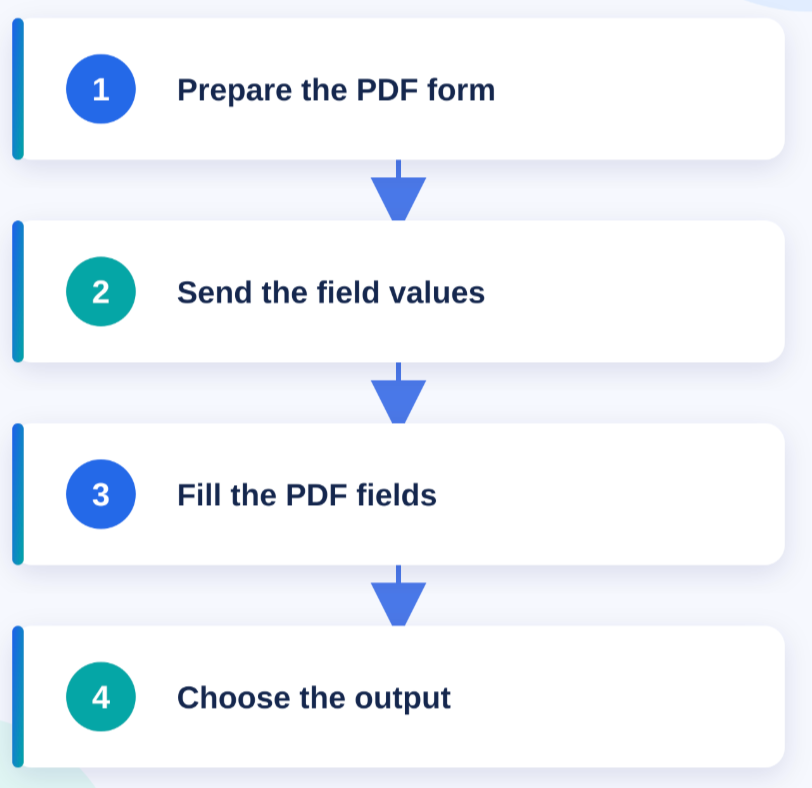
1. Start with a prepared PDF form
Start with a fillable PDF. Add fields for the information you want to include and give each one a simple name, such as first_name, last_name, email, or date_of_birth.
Your application uses these field names to place each value in the right part of the form.
2. Send the field values to the API
Your application sends the selected PDF template and the information needed to fill it to the API. This information can come from a CRM, web form, internal database, or customer portal.
Before sending the request, check that all required information is present and in the right format. This gives users a chance to fix missing or incorrect details first.
3. Map the data to the form fields
The API uses the field names to place each value in the right field. Review a sample output to check formatting, field size, date format, and checkbox values before using the document workflow with real data.
4. Choose the output format
The workflow returns the completed PDF. Depending on the platform and process, the output can remain editable or be flattened into a final PDF.
Keep the PDF editable when someone still needs to review or add information. Flatten it when the completed form should serve as a final record. Flattening makes the filled values part of the PDF, so the fields no longer stay editable.
You can then download it, store it, deliver it by email, attach it to a record, or send it for eSignature.
Common PDF form filling API use cases
Teams use a PDF form-filling API when they need to complete the same form many times with different information.
Here are some common use cases:
- Customer and client intake forms: Prefill a form with information a customer has already supplied through a portal, CRM record, or account-creation flow.
- Compliance and acknowledgment forms: Create completed forms from employee or customer data, then route them to the required recipient for review, acknowledgment, or signature.
- Registration and application forms: Fill in the information you already have, then send the form to the recipient to review and complete.
- Agreements and supporting documents: Fill an approved PDF agreement or add a completed PDF form to a larger document packet before delivery or eSignature.
- Internal operational forms: Generate work orders, inspection forms, incident records, and service forms from operational system data.
What to check before choosing a PDF form-filling API
Form and template support
Make sure the API supports the fields in your forms, such as text fields, checkboxes, dropdowns, radio buttons, dates, images, and signature fields. Test how it handles your existing PDFs, field names, template updates, and legacy forms.
Data mapping and validation
Check how the API accepts structured data and how it reports missing fields, invalid values, and mapping errors. Clear error responses make it easier to fix issues.
Testing and volume
Test the exact PDFs your team plans to use before going live. Check how the API reports failed requests, whether it supports batch processing, and how it handles high volumes. This matters when you need to fill many forms at once or run document jobs in the background.
Output and workflow
Review editable and flattened output options, file naming, password protection, storage destinations, and return formats. Also check how the API fits the next step, such as storage, email delivery, eSignature, status updates, or a webhook back to your system.
Security and retention
PDF forms can contain personal, financial, or health information. Before using your real data, check who can access the forms, how the information is protected, and when it is deleted.
How Docupilot supports PDF form workflows
With Docupilot, you can automate an existing fillable PDF. Your team first creates or edits the form fields in a PDF editor, then uploads the PDF to Docupilot. We automatically recognize the fields and use their names and properties to create template tokens.
Your CRM, portal, or internal system sends the required values to our document automation API. We use those values to complete the PDF and return the result to your application.
With us, your team can:
- Upload a fillable PDF template. We automatically recognize its fields and turn them into tokens.
- Send data from your CRM, portal, or internal system to fill those fields and generate the completed PDF.
- Keep the PDF editable when someone still needs to complete it, or flatten the fields when it is ready to use as a final record.
- Update the original form in a PDF editor, then upload the revised PDF to Docupilot.
- Fill checkbox and radio-button fields by sending the exact “On” or “Export” value set for that option in the PDF.
- Add an image, such as a signature image, by sending a URL that Docupilot can access.
- Append or convert PDF files, then deliver the completed document by email, webhook, or eSignature and return its status to your application.
Developers manage the application connection and data payload. Your team manages the PDF template and the document workflow settings in Docupilot.
Book a demo with us to discuss your PDF form filling process.
FAQs
1. How do I handle a form-field mapping error?
If a value does not appear in the right field, check that the field name in the PDF matches the name your application sends. Also check that all required information is included. Save the error message and document ID so your team can find and fix the issue.
2. What data format does a PDF form filling API use?
Most PDF form-filling APIs accept structured data such as JSON. The field names in the request should match the field names in the PDF template. Test the template with sample data before using real customer or employee information.
3. Will every fillable PDF work with an API?
It depends on the PDF and the platform you use. Standard fillable PDFs are usually the simplest to map. Legacy forms, XFA forms, password-protected PDFs, and scanned documents need additional testing before you build the workflow.
4. Can a PDF form filling API fill many forms at once?
Yes, if the platform supports batch processing. Your application can send multiple records to create multiple completed PDFs. Make sure to check the API’s rate limits and how it reports failed records before running a large batch.
5. What happens if a field has more text than the PDF can display?
Test the form with the highest word limit you plan to use. Some fields can expand or allow multiple lines, but fixed PDF layouts have limited space. If the content needs to grow or change often, use a document-generation template instead of a fixed PDF form.
Learn how to automate document creation with Docupilot


Contents
Stop rebuilding the same document by hand.

Generate and sign documents in one workflow
Save ~15 minutes per application