





Key takeaways
- A configured workflow can generate a PDF from application data and send it for eSignature. The signed document becomes available once signing is complete.
- When connected to eSignature, the workflow prepares the document for signing and reports whether the process completes or fails.
- JSON carries the business data used in the document, while the template controls where that information appears in the PDF.
- Developers manage the API connection and application behavior. Authorized operations users can maintain templates and supported workflow settings after launch.
- A combined PDF and eSignature workflow reduces file transfers and keeps each signature request connected to the correct application record.
PDF generation and eSignature often rely on separate APIs. A PDF generation API creates the document, while an eSignature API sends it for signing. Developers then have to transfer files between services, keep recipient details accurate, match signing events to the right document or record, and handle failed requests.
This setup also creates more code to maintain. Because the process is split across multiple systems, changes to a template or signing workflow may require updates in several places. If one connection fails, the application could show an incorrect status or lose track of the completed document.
A PDF automation API with eSignature integration brings these steps into a single workflow. It applies the document rules, generates the PDF, routes it for signing, and returns the result to the application.
This guide explains how one workflow can turn application data into a signed PDF and return the completed file.
How a PDF automation workflow works
A PDF automation workflow connects your application to a document automation platform. Your application sends the required business data. The platform follows a configured workflow to create the document and return the result.
The process has six stages:
- Trigger: Your application sends data to a workflow that is ready to run.
- Decide: The workflow selects the required path or template.
- Generate: The platform places the data into the template and creates the document.
- Process: The platform converts or combines files when required.
- Sign and/or deliver: The document is sent for signature or delivered to its destination.
- Track: The platform reports whether the process was completed or failed.
Your application decides when to start the process and what to do with the returned result. The document platform handles the steps configured in the workflow.
How a PDF automation API uses JSON
A PDF automation API usually receives business data as JSON. Your application provides the required values, while the document platform controls how those values appear in the finished PDF.
Let's look at an example below:
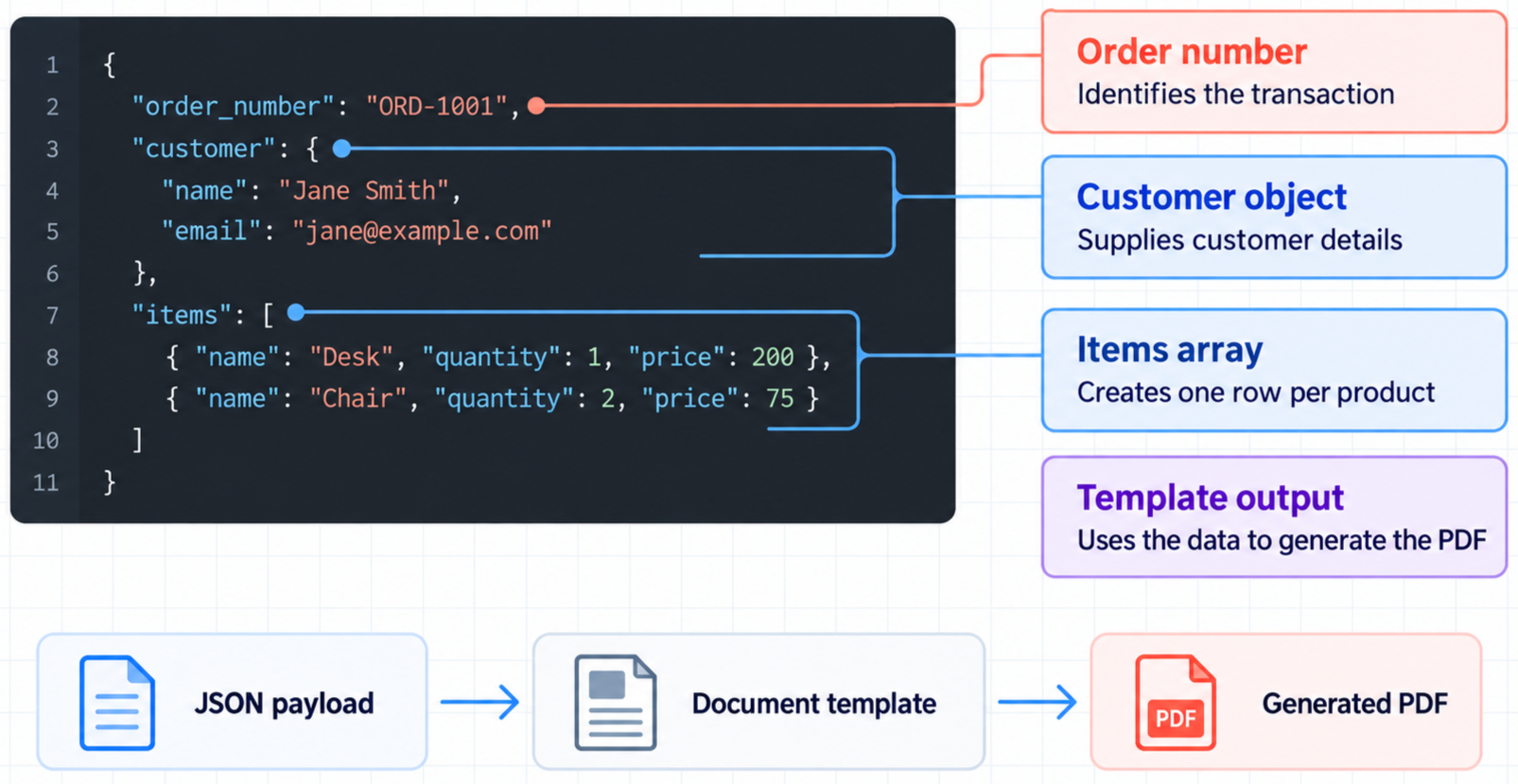
This example contains a customer object and a list of order items. Your actual payload must match the template and endpoint configured in your workspace.
This separation makes the integration easier to maintain. You can update the template’s wording or layout without changing the application.
The information sent by your application must match the fields in the document template. The response depends on the endpoint or workflow you call. Your application should handle the documented output and execution status instead of assuming every request returns the finished file immediately.
How PDF automation and eSignature work together
Consider a SaaS application that needs to generate and send customer agreements whenever someone subscribes to a paid plan.
The application sends customer details, subscription information, and signer details to a configured document workflow. Based on the submitted data, the workflow selects the appropriate agreement and any required disclosures, populates the templates, and, when needed, combines the generated files into a PDF packet.
Once the document is ready, Docupilot creates an eSignature envelope and emails the signing invitation to the customer. After signing, the workflow can retrieve the signed documents and deliver them to the application's webhook endpoint or a configured storage destination.
With Docupilot, you can add signing fields to the template and configure the recipients. You can also control the signing order and reminder settings. Our document automation API supports file conversion, PDF appending, reordering, and transformation.
Review our eSignature documentation for details about signing fields and envelope settings.
How signed PDFs return to your application
After you create the signing request, your application can track the envelope using its identifier and supported signing events. To process completed documents, configure the workflow to wait for the required eSignature event, retrieve the envelope documents, and deliver them through a webhook or supported storage destination.
Decide how your integration will handle:
- Completed and declined envelopes
- Expired or voided requests
- Signed-document storage
- Duplicate callback events
- Failed delivery attempts
Keep a stable internal identifier in the workflow data. This helps your application connect every status event and completed document to the transaction that started the process.
Who should manage your PDF automation workflow?
Clear ownership reduces engineering work after launch. Developers should manage the application integration, while authorized operations users maintain the document content and available workflow settings.
In Docupilot, authorized users can update templates and document rules after the integration is live. Developers get involved when a change affects the data the application sends or how it behaves. They also remain responsible for authentication and event handling.
How to integrate PDF automation with eSignature
Once you've mapped out your document workflow, configure and test each component before using it in production.
- Prepare your document template
Create or upload your template, define the required merge fields, and place signature fields where recipients need to sign.
- Map your application data
Configure the workflow to accept the required JSON payload. Map incoming values to the corresponding template fields and configure any conditional rules used to select documents.
- Configure PDF generation and processing
Test document generation using sample data. If the signing process requires multiple documents, configure the necessary conversion and PDF assembly steps.
- Configure eSignature delivery
Define recipients, signing order, and reminder settings. Select the appropriate sender mode. For API-triggered workflows without a logged-in user, configure a Fixed Sender.
- Configure post-signing actions
Use Wait for eSign Event to handle signing outcomes. For successfully completed envelopes, configure Get Envelope Documents to retrieve the signed files and deliver them to the required destination.
- Connect your application
Use the appropriate API endpoint and authentication method to trigger the workflow. Ensure your application can associate the resulting envelope and workflow events with the original transaction.
- Test the complete workflow
Test successful signing alongside scenarios such as missing data, failed document generation, declined or expired envelopes, failed deliveries, and duplicate notifications. Verify that your application handles each outcome correctly.
Our API documentation shows developers how to connect your application to Docupilot and what information to send.
Each request includes credentials so Docupilot can verify access. When a request uses a specific workspace, it must also identify that workspace.
How Docupilot automates PDF and eSignature workflows
With Docupilot, your application sends business data to a configured document workflow. We use that data to generate the document and prepare it for delivery. When signatures are required, we route the document through the configured eSignature process.
We return the available workflow status to your application. Authorized users can update templates and supported workflow settings without changing the application code.
API access is included with every Docupilot plan. Plans start at $29 per month for 100 delivered documents and one user. Native eSignature is available as an add-on, with pricing based on envelope volume. Review our current Docupilot pricing before purchasing.
We built Docupilot for applications that begin with business data and need to generate documents before collecting signatures.
Start with a document your team already uses. Send sample business data and confirm that the generated file follows your content rules. You can then add eSignature or delivery based on your process.
Start a 14-day free trial with no credit card required.
FAQs
- Which programming languages can use the API?
Any language that can send HTTPS requests can use the REST API. With Docupilot, you get an interactive OpenAPI reference and a public cURL example.
- Does a manual reminder change the automated schedule?
No. Sending a manual reminder does not reset or cancel scheduled reminders. The configured first reminder, follow-up frequency, and expiry warning continue as planned.
- How does Docupilot handle workflow failures?
When a workflow module fails, Docupilot automatically retries it up to five times. If the module keeps failing, Docupilot marks the workflow as failed and sends notifications via email and a configured account-level webhook. These notifications help your team identify failures and take corrective action.
- Can recipients sign an expired envelope?
No. Once an envelope expires, recipients can no longer open or sign it. Configure the expiry period and warning emails based on the agreement’s deadline.
- Signature fields vs. embedded signing: What’s the difference?
Signature fields mark where someone should sign or enter information in a document. Embedded signing keeps the signing experience inside your app, so signers can complete the process without leaving it. At Docupilot, we support both Signature fields in templates and embedded signing within your app.
Learn how to automate document creation with Docupilot


Contents
Stop rebuilding the same document by hand.

Generate and sign documents in one workflow
Save ~15 minutes per application